Polyglot
Polyglot is an AI-powered multilingual translation plugin for WordPress. Instead of relying on traditional machine-translation APIs, it sends your content to one of six leading large language model providers (OpenAI, Anthropic Claude, Google Gemini, DeepSeek, Grok, or a self-hosted Ollama instance) and writes the result back into your site as fully indexable, SEO-friendly translated content. URLs are clean and language-prefixed (/fr/about/, /de/contact/), translations are cached for fast delivery, and you can edit any translation by hand for perfect accuracy. Polyglot works with the classic editor, the block editor, Divi 4, Divi 5, Elementor, and WooCommerce.
Highlights
- Six AI providers — OpenAI, Anthropic Claude, Google Gemini, DeepSeek, Grok, and Ollama (local models, no data leaves your server).
- URL-based language switching — each language gets its own URL prefix (
/fr/,/de/,/es/). No query parameters, no cookies, no JavaScript redirects. - Page builder support — translates every module in Divi 4 (shortcodes), Divi 5 (block editor), and Elementor — not only post body content.
- Translation caching — results are persisted in the database for instant page loads, and invalidated automatically when source content changes.
- WooCommerce ready — translate product titles, descriptions, short descriptions, attributes, categories and shop pages.
- Media translation — translate image alt text and captions; swap images per language when you need locale-specific creatives.
- Post duplication — generate per-language duplicates of any post or page when you want fully independent editorial control over a language.
- Background queue — large sites are processed in the background via a custom WordPress cron schedule (every 5 minutes).
- Manual override — every AI translation can be reviewed and edited before publishing.
Requirements
- WordPress 6.0 or newer.
- PHP 7.4 or newer (PHP 8.1+ recommended).
- A working WordPress cron (either the default
wp-cron.phpor a real system cron). Required for the background translation queue. - An API key for at least one supported AI provider, or a reachable Ollama installation if you prefer local models.
- Pretty permalinks enabled (Settings → Permalinks → anything other than “Plain”). Required for clean language-prefixed URLs.
Installation
- Download the plugin ZIP from your Slotix account.
- In WordPress, go to Plugins → Add New → Upload Plugin.
- Select the ZIP, click Install Now, then Activate.
- A new top-level Polyglot menu appears in the WordPress admin sidebar.
- Open Polyglot → Settings to begin configuration.
Configuration
Choosing an AI provider
Open Polyglot → Settings and pick the provider you want to use. Each provider has slightly different strengths:
- OpenAI (GPT-4 / GPT-4o) — strong all-rounder for general translation work.
- Anthropic Claude — excellent at preserving nuance, tone and context across long documents.
- Google Gemini — fast and cost-effective for high-volume jobs.
- DeepSeek — competitive quality at very low cost per token.
- Grok — useful when you already have an xAI account or want a different stylistic voice.
- Ollama — runs models locally on your own server. No data leaves your infrastructure. Recommended for sites with privacy or compliance requirements.
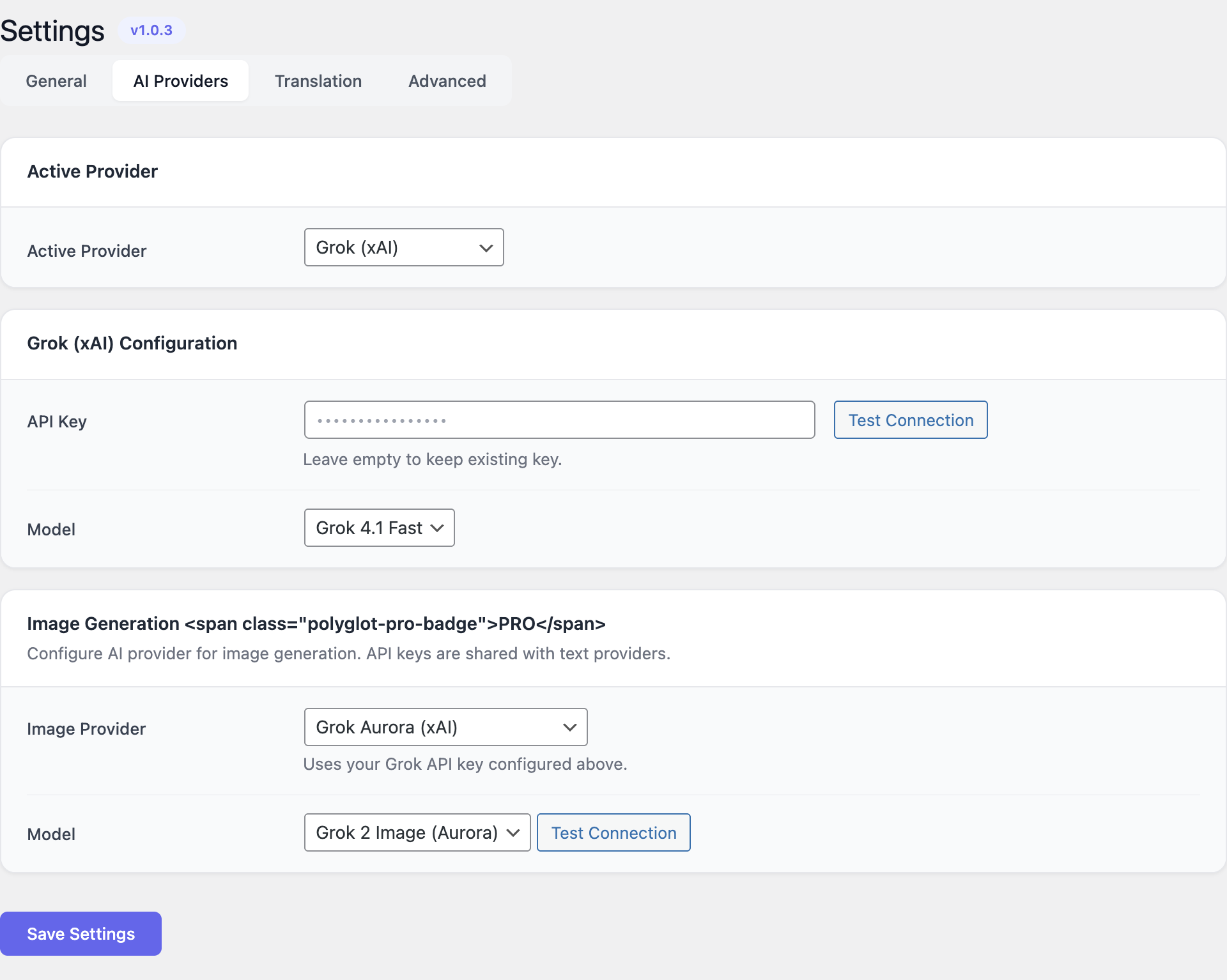
Paste the API key for your chosen provider into the corresponding field and save. For Ollama, enter the base URL of your Ollama server (for example http://localhost:11434) instead of an API key, and select one of the models you have pulled locally.
Main settings
The main settings screen exposes the following options:
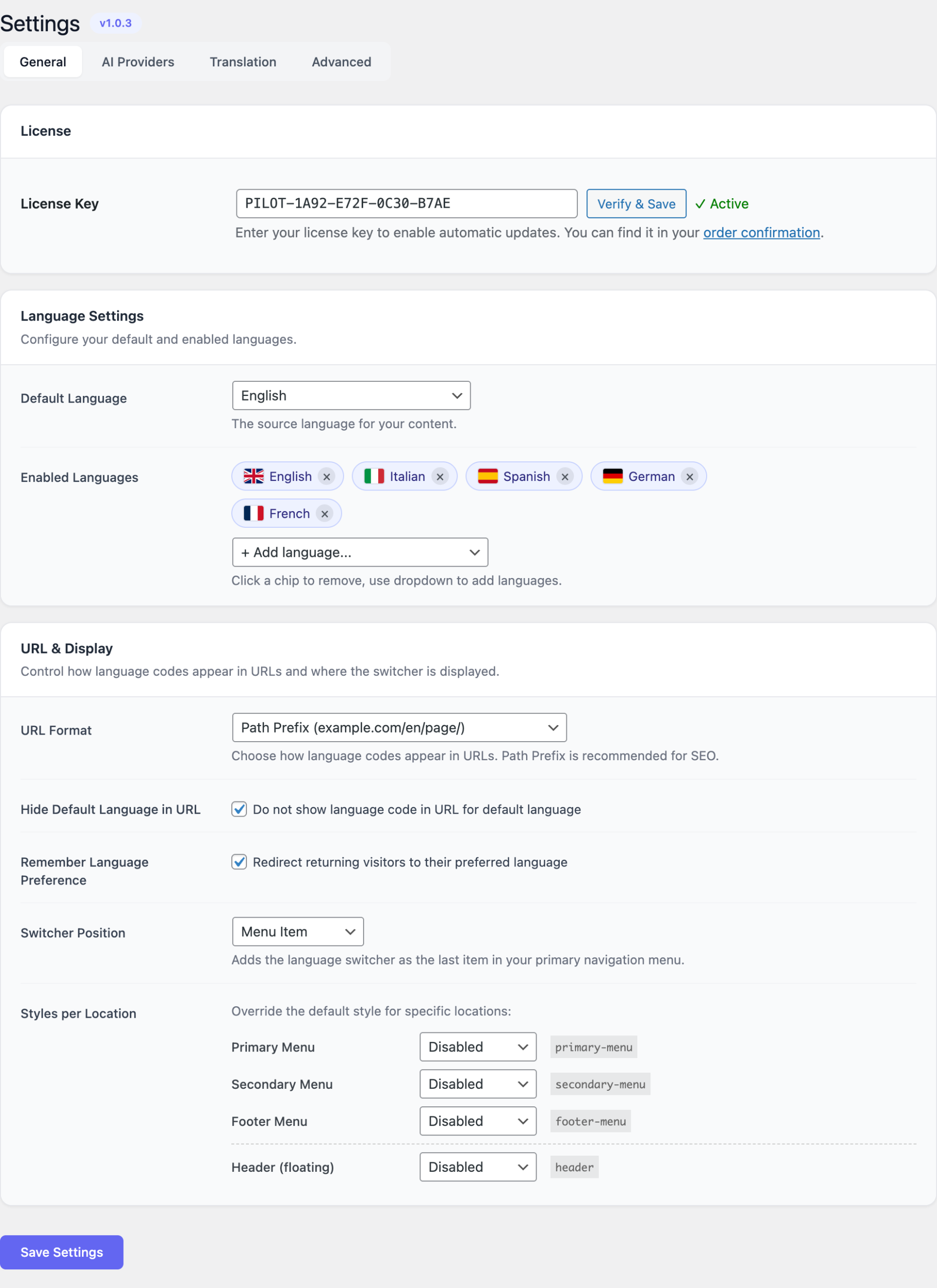
- Default model — the model name to use for translation requests (for example
gpt-4o-mini,claude-sonnet-4,gemini-2.5-flash). Smaller models are cheaper and faster; larger models produce higher-quality translations. - Temperature — controls how literal versus creative the translation is.
0.2–0.4is recommended for documentation;0.5–0.7works well for marketing copy. - Auto-translate on save — when enabled, every time you save a post or page in the default language, Polyglot queues translations into every active target language. Disable this on busy editorial sites and translate on demand instead.
- Translation cache — keep enabled in production. Disable only when debugging.
- Cron schedule — Polyglot registers a custom
every_5_minutescron event. Increase the frequency on small sites; decrease it on shared hosting that throttles cron. - Glossary / do-not-translate list — terms in this list (brand names, product names, code identifiers) are preserved verbatim across every language.
Languages
Open Polyglot → Languages to define which languages your site speaks.
- Pick a default language (typically the language you author content in). This is the source for every translation.
- Add one or more target languages. For each language you choose:
- The two-letter ISO code (used as the URL prefix, e.g.
fr,de,es). - The display name shown in the language switcher (e.g. “Français”).
- The flag (Polyglot ships SVG flags for common locales).
- Whether the language is published (visible to visitors) or kept in draft while you review translations.
- The two-letter ISO code (used as the URL prefix, e.g.
You can add or remove languages at any time. Removing a language hides its translated content from the public site but does not delete the stored translations — you can re-enable it later without re-translating.
Permalinks
Polyglot uses URL prefixes for language routing. After adding languages, visit Settings → Permalinks and click Save Changes once. This flushes the rewrite rules so URLs like /fr/about/ start resolving correctly.
If you use a caching plugin or a CDN, purge the page cache after this step.
Usage
Translating a single post or page
Open any post or page in the editor. A Polyglot meta box appears in the sidebar, listing every target language with one of three states:
- Not translated — no translation exists yet. Click Translate to queue an AI translation.
- Queued / In progress — the background worker will pick this up on the next cron cycle.
- Translated — click the language to open and edit the translated copy.
For each language you can:
- Translate — generate (or regenerate) the translation using the configured AI provider.
- Edit — open the translated copy in the editor and adjust it by hand.
- Unlink — detach the translation, turning it into a fully independent post for that language.
- Delete — remove the translation entirely.
Translations preserve every page builder module: Divi rows and modules, Divi 5 blocks, Elementor sections and widgets, Gutenberg blocks, shortcodes, and inline HTML.
Bulk translation via the queue
For sites with many posts, use Polyglot → Translation Queue.
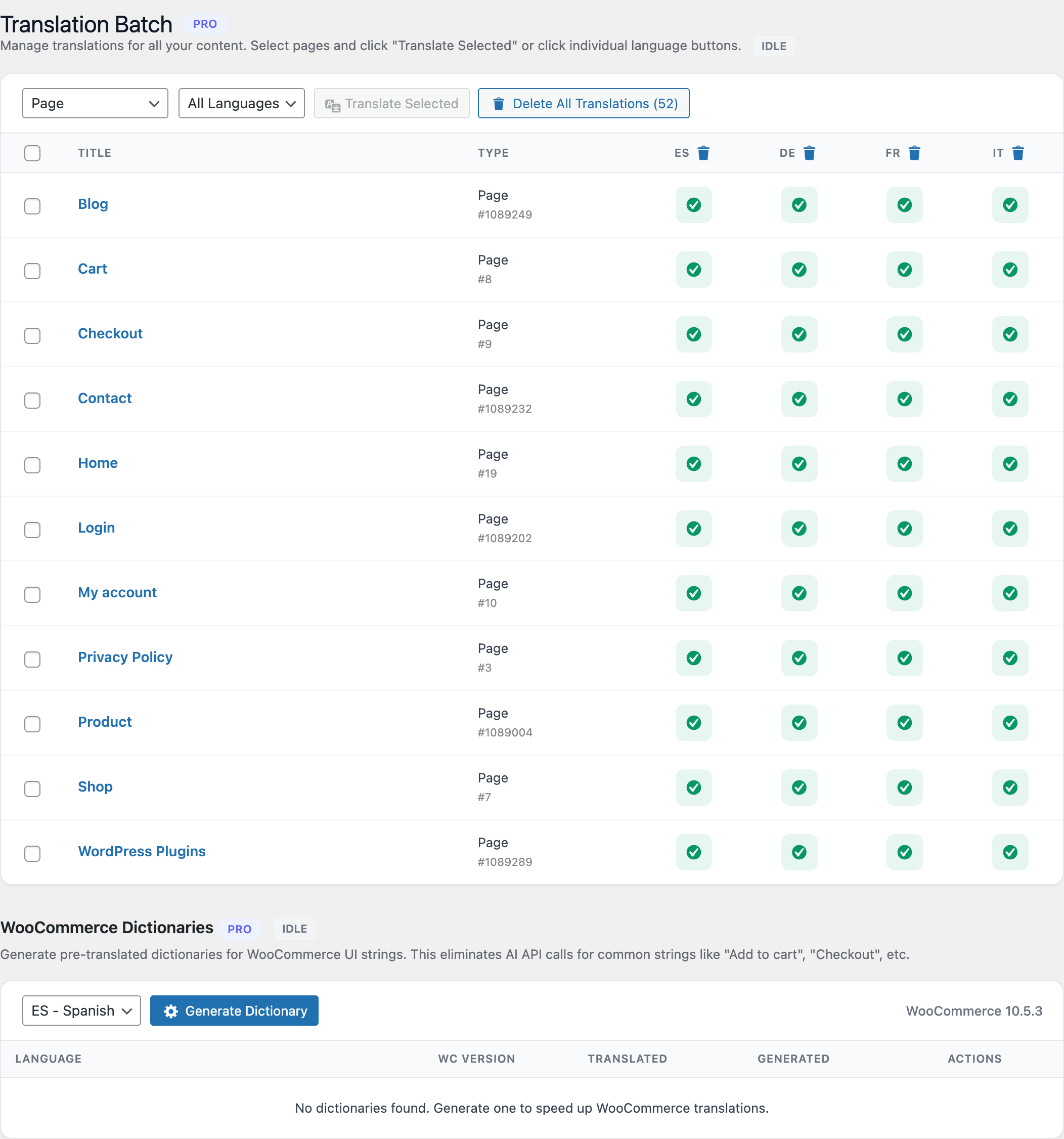
From the queue screen you can:
- Filter by post type (posts, pages, products, custom post types).
- Select multiple items and queue them for translation into one or more languages.
- Pause, resume, retry, or cancel queued jobs.
- See per-item status, provider used, and any error messages returned by the AI API.
The queue is processed every 5 minutes by WordPress cron. On large sites you can trigger a manual run by clicking Process now at the top of the screen.
Media translation
Polyglot can translate the alt text and captions of every image in your media library, and optionally swap the image file itself per language (useful for screenshots that contain UI in the source language).
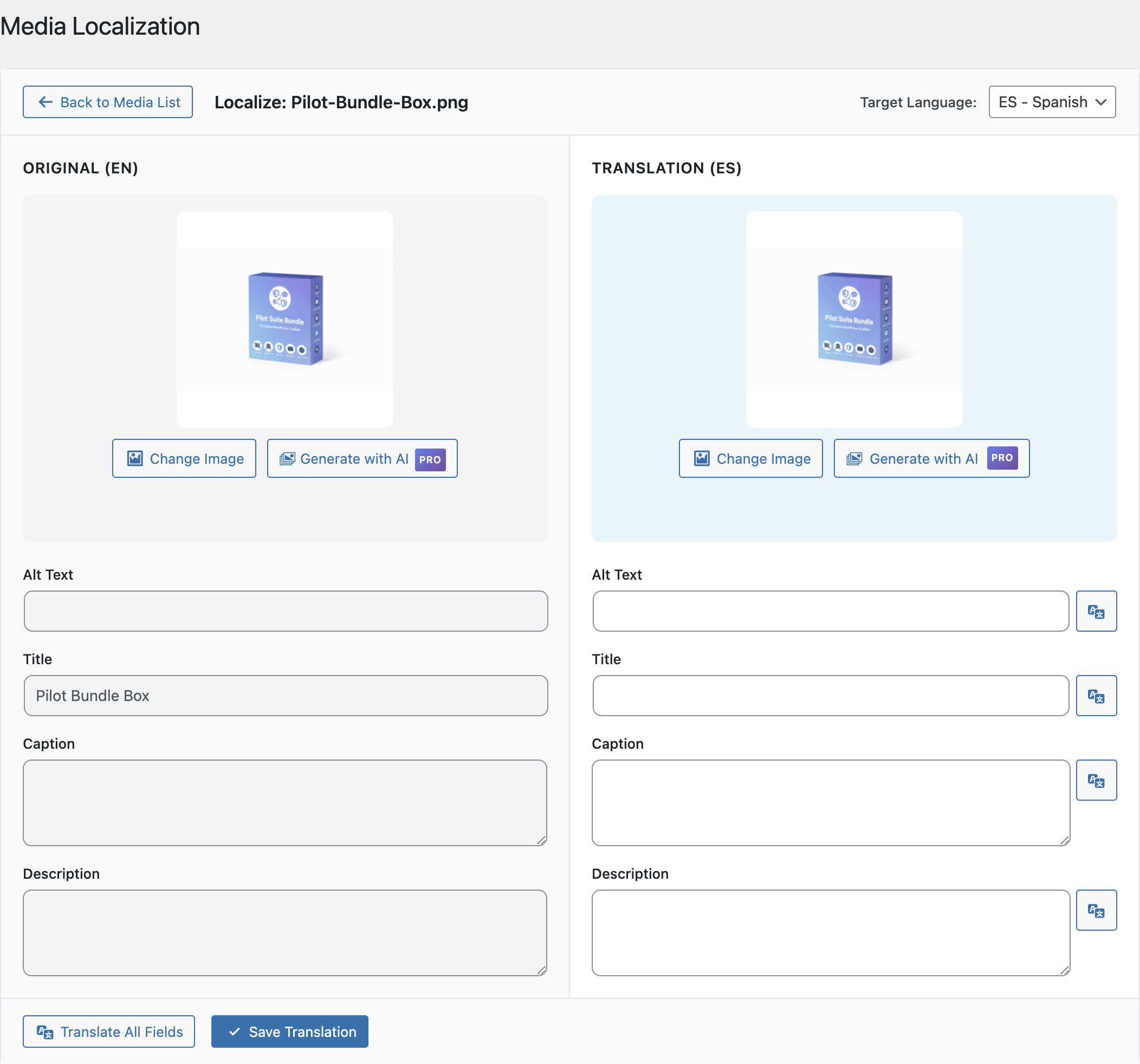
In Polyglot → Media you can:
- Select one or more images.
- Queue alt-text and caption translation into the target languages.
- Upload a per-language replacement image when needed — Polyglot will serve the localized image on translated pages.
Language switcher
Polyglot provides three ways to let visitors switch languages:
- Widget — drag the Polyglot Language Switcher widget into any sidebar or widget area.
- Shortcode — paste
[polyglot_switcher]anywhere a shortcode is accepted. - Block — in the block editor, add the Polyglot Switcher block.
All three render the same component and accept the same options: flag-only, name-only, flag-and-name, dropdown, or inline list.
WooCommerce
When WooCommerce is active, Polyglot adds product, category and shop-page translation to the queue. Translations cover:
- Product title and description.
- Short description.
- Product attributes and variation names.
- Product categories and tags.
- WooCommerce shop, cart and checkout copy that comes from your theme.
Customer-facing strings emitted by WooCommerce core itself are translated by WooCommerce’s own gettext system — Polyglot does not duplicate that.
Post duplication
Some content needs to be authored independently per language rather than translated — for example a regional landing page that promotes different products in Italy versus Germany. Use Duplicate as language copy from the Polyglot meta box. The duplicated post is linked to the original for language switching, but its content is fully editable and is never overwritten by the AI translator.
Screenshots
FAQ
Which AI provider should I choose?
Start with whichever provider you already have an account with. If you are choosing from scratch and quality is your priority, Anthropic Claude and OpenAI GPT-4-class models produce the most idiomatic translations. If cost matters most, DeepSeek and Gemini are significantly cheaper at similar quality. If your content cannot leave your infrastructure (legal, medical, government), run Ollama on your own server.
Are the translations stored locally or fetched from the API every page load?
Translations are stored locally in your WordPress database. The AI API is only called when you ask Polyglot to translate or re-translate something. Visitors never trigger API calls.
Will translated pages rank in search engines?
Yes. Translated pages live at real, crawlable URLs (/fr/about/, /de/contact/) and emit appropriate hreflang annotations so Google can show the right language to the right user. Each translated page has its own title, meta description and slug.
Can I edit AI translations by hand?
Yes. Every translation is fully editable in the standard WordPress editor (and in Divi or Elementor for builder-driven pages). Manual edits are preserved and will not be overwritten unless you explicitly re-translate.
Does Polyglot translate page builder content?
Yes. Polyglot understands Divi 4 shortcodes, Divi 5 blocks and Elementor sections. It translates the text inside builder modules while leaving the structural markup untouched.
What happens if I add a new language later?
Add the language in Polyglot → Languages, then go to the translation queue and bulk-queue existing posts into the new language. Polyglot will work through them on the cron schedule.
What happens to the queue if a translation request fails?
The job is marked as failed with the error returned by the provider (rate limit, invalid API key, content policy violation, etc.). You can retry it from the queue screen. Successful jobs are not affected.
Does Polyglot work with caching plugins and CDNs?
Yes, but each language URL is a separate cache entry. After adding or removing a language, flush your page cache so the new URLs are picked up. Polyglot itself uses its own in-database cache for translations, independent of your page cache.
How do I make sure my brand name is never translated?
Add it to the glossary / do-not-translate list in Polyglot → Settings. Terms in that list are preserved exactly across every language.
Troubleshooting
Translations are not appearing on the front end
- Confirm the language is marked published, not draft, in Polyglot → Languages.
- Re-save permalinks once (Settings → Permalinks → Save Changes) to refresh rewrite rules.
- Purge any page cache (caching plugin, CDN, server-level cache).
The queue is not processing
- Verify WordPress cron is running. On hosts that disable
wp-cron.php, set up a real system cron that hitswp-cron.phpevery minute. - Check Polyglot → Translation Queue for failed jobs and read the error message — most stalls are caused by an invalid API key, an out-of-credits provider account, or rate limits.
”Invalid API key” errors
- Re-paste the API key, being careful not to introduce leading or trailing whitespace.
- Confirm the key has the required scope (some providers issue read-only keys that cannot generate completions).
- Confirm your provider account has billing enabled and is not exhausted.
Ollama times out
- Make sure the Ollama process is running and reachable from your web server.
- The first request to a freshly loaded model is slow because Ollama loads weights into memory. Subsequent requests are fast.
- Larger models (70B+) require substantial RAM/VRAM. Switch to a smaller model (for example
llama3.1:8b) if your server cannot host the larger one.
Translated page builder layouts look broken
- Re-translate the post. Occasionally a network glitch truncates a response and breaks a shortcode. A clean retry usually fixes it.
- If the problem persists for a specific module, edit the translation by hand and report the module type to Slotix support so the prompt template can be improved.