Cookie Consent
Cookie Consent is a fully customizable, GDPR and CCPA compliant cookie consent banner for WordPress. It gives your visitors complete control over which cookies and tracking scripts run on your site, organizes cookies into clear categories, prevents non-essential scripts from loading without approval, and maintains a tamper-evident consent log so you can prove compliance during audits.
The plugin is lightweight, dependency-free on the frontend, ships with a vanilla JavaScript runtime, and integrates with the Polyglot plugin so that banner copy is automatically translated for every language on your site.
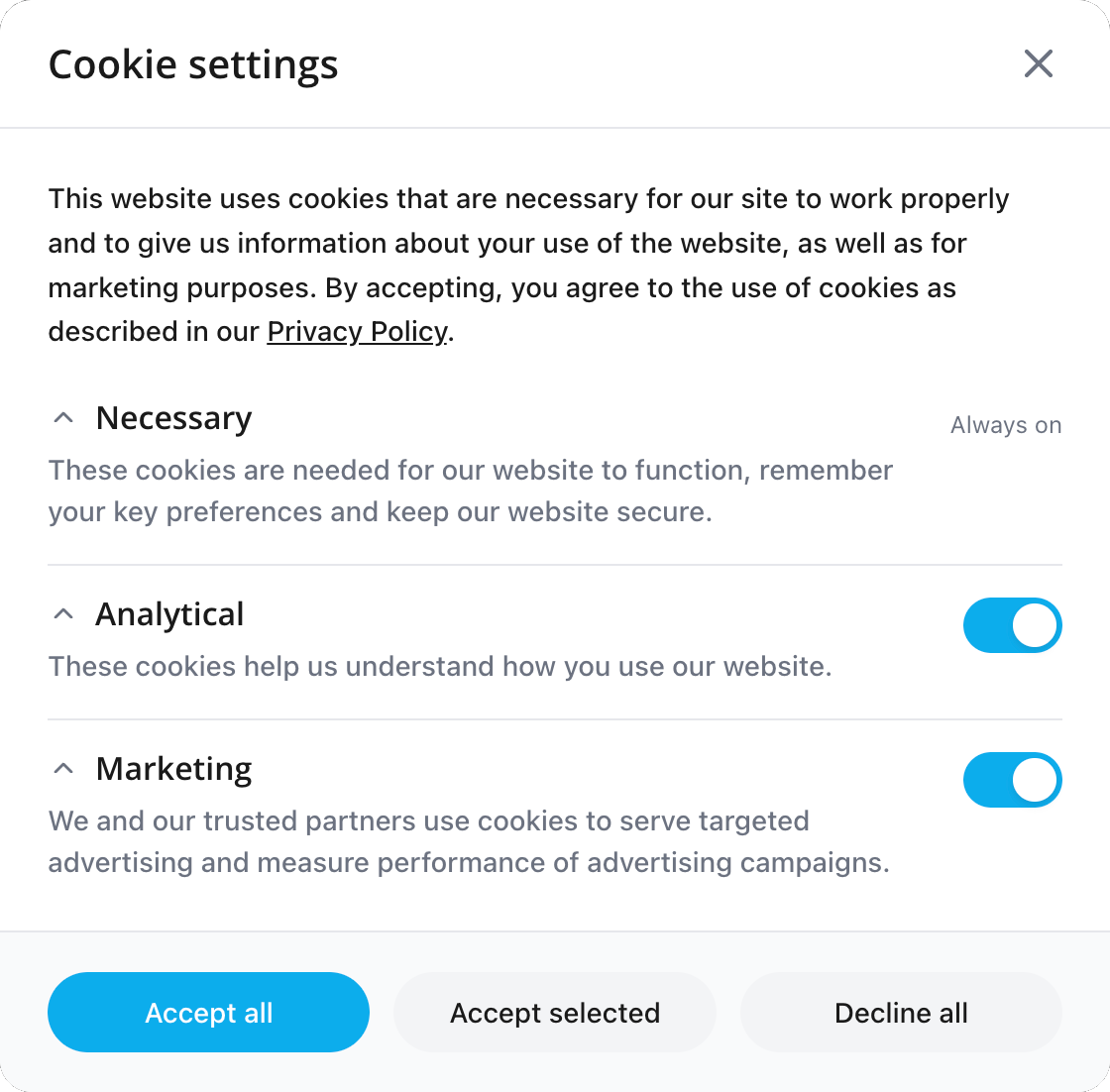
Highlights
- Category-based consent. Cookies are grouped into three categories out of the box: Necessary (always active), Analytical (Google Analytics, Matomo, Hotjar, Mixpanel) and Marketing (Facebook Pixel, LinkedIn Insight, Google Ads).
- Automatic script blocking. Add URL patterns for scripts that should be blocked until consent is granted. Each pattern is mapped to a category and is unblocked automatically the moment the visitor opts in.
- Five banner positions. Choose between Bottom Left, Bottom Right, Bottom Center, Top, and a centered Modal.
- Live appearance editor. Configure primary, background and text colors plus an optional floating settings button. A live preview shows changes before you save.
- Consent log and statistics. Every consent decision is stored in a dedicated table. A built-in dashboard surfaces total consents and per-category acceptance rates.
- Multilingual ready. With Polyglot installed, banner title, description, button labels and category names are translated automatically for each active language.
- Configurable cookie lifetime. The consent cookie can be set to expire anywhere from 1 to 730 days.
- Developer friendly. PHP and JavaScript APIs plus a
ccm:consent-updatedDOM event let you integrate with custom themes, plugins and third-party tag managers.
Requirements
| Component | Minimum version |
|---|---|
| WordPress | 5.8 |
| PHP | 7.4 |
| MySQL | 5.7 |
| MariaDB | 10.3 |
The plugin works on any modern theme. No additional libraries, build steps or external services are required for the frontend banner to run. Polyglot is optional; install it only if you need multilingual translations of the banner copy.
Installation
- Download the latest
cookie-consent.zipfrom the Slotix plugin portal or your purchase receipt. - In WordPress, navigate to Plugins → Add New → Upload Plugin.
- Select the ZIP file and click Install Now.
- Click Activate Plugin once installation completes.
- Open Settings → Cookie Consent to begin configuration. On a fresh install the banner is enabled with sensible defaults, but you should review every tab before going live.
Alternatively, you can upload the unzipped cookie-consent folder to /wp-content/plugins/ over SFTP and activate the plugin from Plugins → Installed Plugins.
Configuration
The settings screen is split into five tabs: General, Appearance, Categories, Script Blocking and Statistics. Work through them in order the first time you set up the plugin.
General
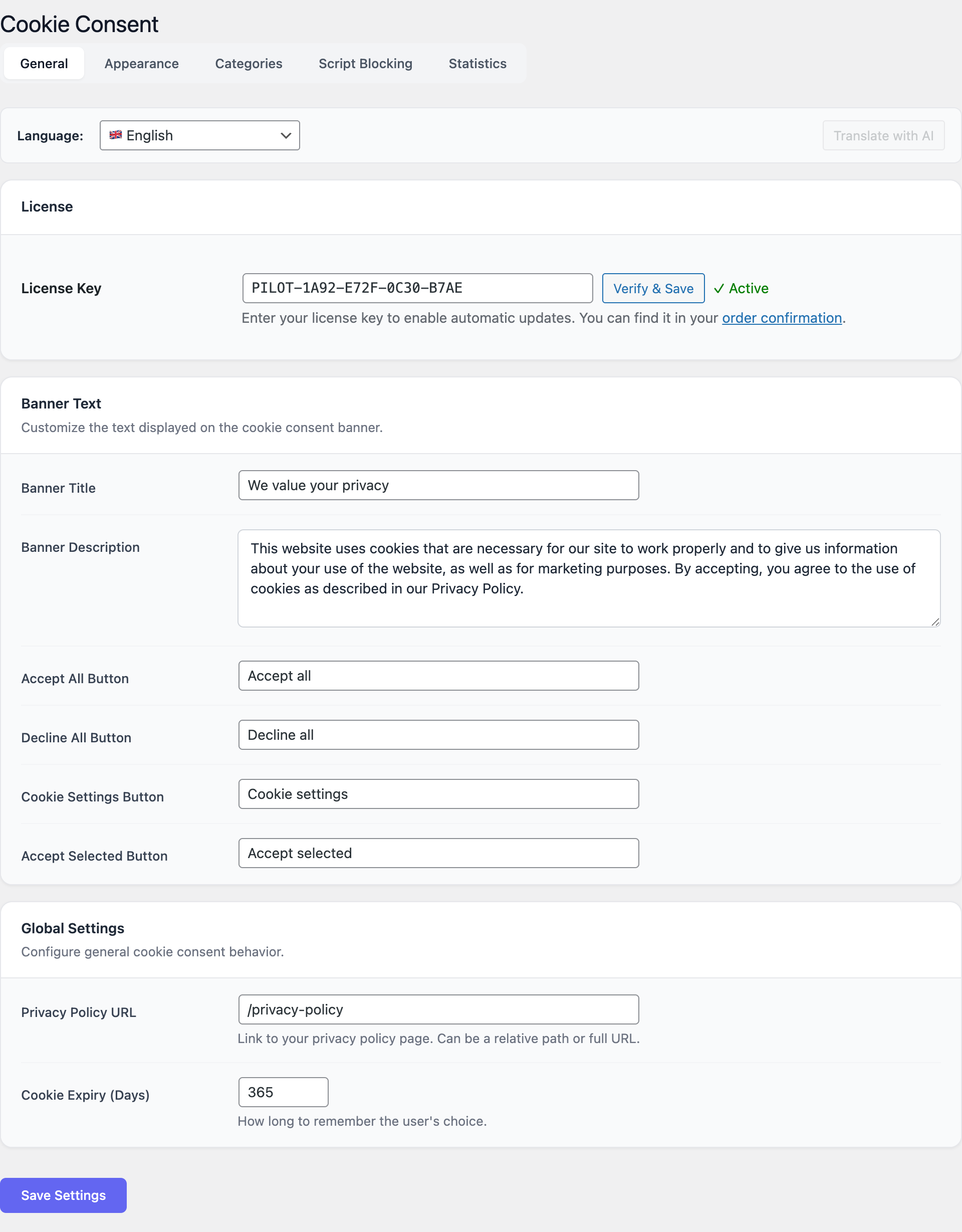
The General tab controls the textual content of the banner and the consent lifecycle.
- Enable banner. Master switch. When disabled, no banner is rendered and no scripts are blocked.
- Banner title. Headline shown at the top of the banner — for example, “We value your privacy”.
- Banner description. Explanatory paragraph. Plain text or basic HTML is supported. Use this space to summarise what cookies you set and link to the full privacy policy.
- Accept all button text. Defaults to “Accept All”. Visitors who click this opt in to every category.
- Reject all button text. Defaults to “Reject All”. Required by GDPR to be as prominent as the accept button.
- Settings button text. Opens the granular consent modal. Defaults to “Cookie Settings”.
- Privacy policy URL. Where the inline “Privacy Policy” link in the banner description points to. Leave blank to hide the link.
- Cookie expiry (days). How long the consent decision is remembered. Acceptable values: 1 to 730 days. The GDPR recommendation is 365 days; longer values require the visitor to re-consent less often but may be flagged by strict auditors.
Appearance
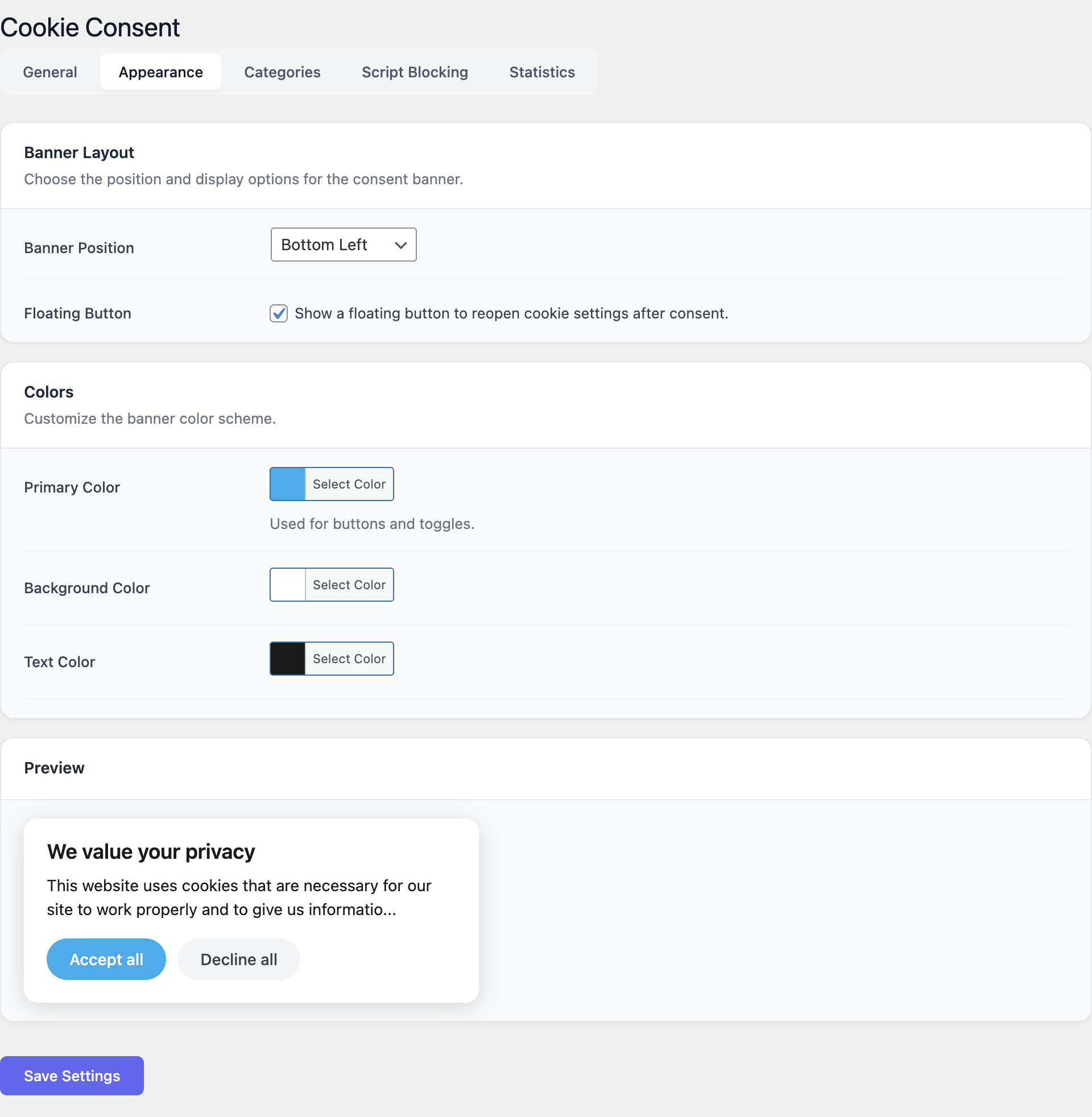
The Appearance tab controls the banner’s visual presentation.
- Banner position. Choose Bottom Left, Bottom Right, Bottom Center, Top, or Modal. Modal renders a centered dialog with a backdrop that blocks interaction with the page until a decision is made — use it only when strict compliance is required, as it is more intrusive.
- Primary color. Used for the accept button and the toggle switches in the settings modal. Pick a color that meets WCAG AA contrast against white text.
- Background color. The banner background. Defaults to white.
- Text color. The banner body text. Defaults to a dark gray.
- Show floating button. When enabled, a small icon stays anchored in the corner of the page so visitors can reopen the consent settings at any time. Required in some jurisdictions (notably Italy and France).
- Live preview. The preview pane updates in real time as you change colors and position so you can verify the result before saving.
Categories
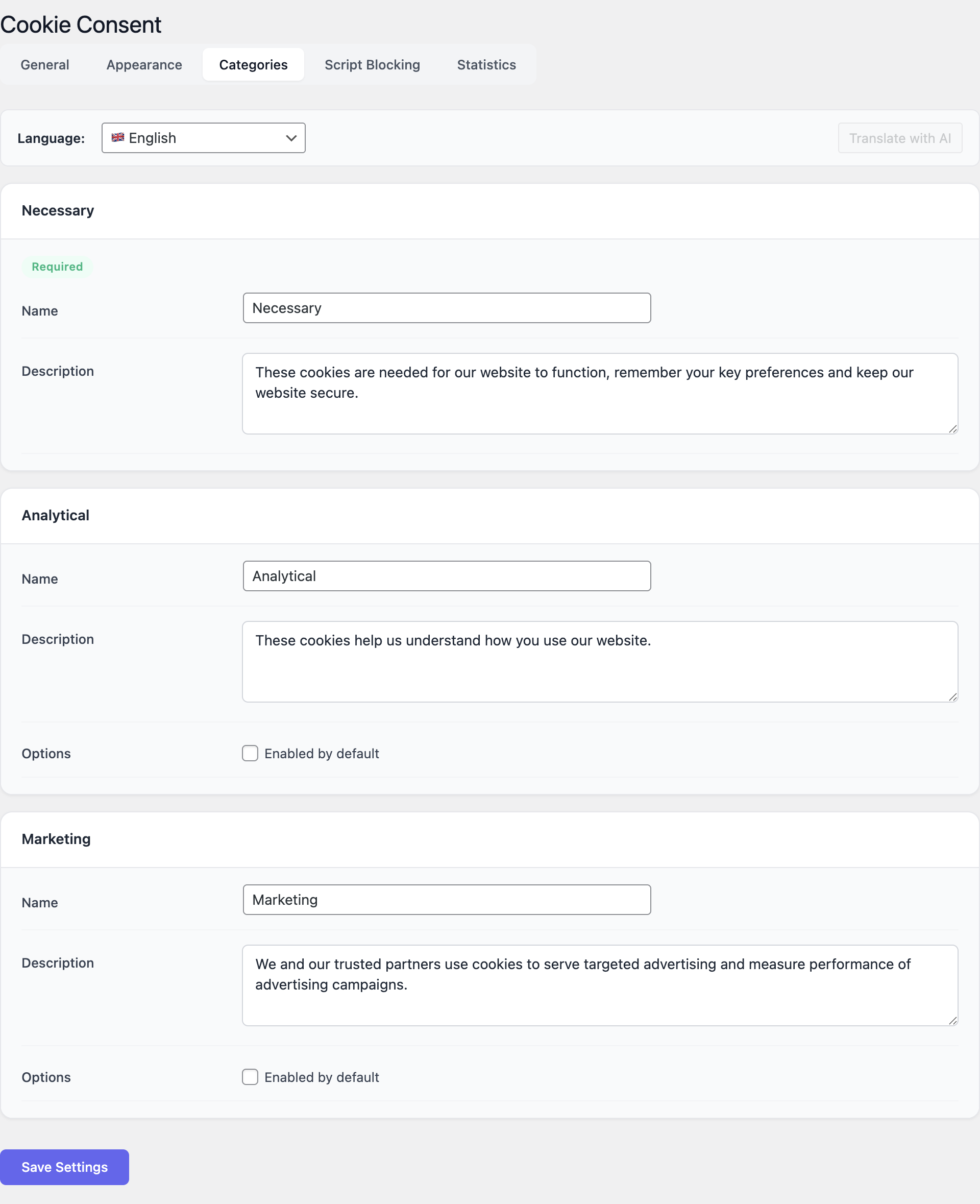
Three categories ship with the plugin. You can rename them, edit their descriptions and disable Analytical or Marketing entirely. The Necessary category cannot be disabled.
- Necessary. Cookies required for the site to function — session, authentication, security tokens, language preference. Always active and not user-toggleable.
- Analytical. Statistical cookies that measure how visitors interact with the site. Examples:
_ga,_gid,_hjSession,mp_*. - Marketing. Cookies used to track visitors across sites for advertising. Examples:
_fbp,fr,IDE,li_sugr.
For each category you can edit:
- Label. Displayed in the settings modal toggle.
- Description. Shown beneath the label. Explain in plain language which scripts the category controls.
- Enabled. When unchecked, the category is hidden from the settings modal and any scripts tagged with it are never loaded.
Script Blocking
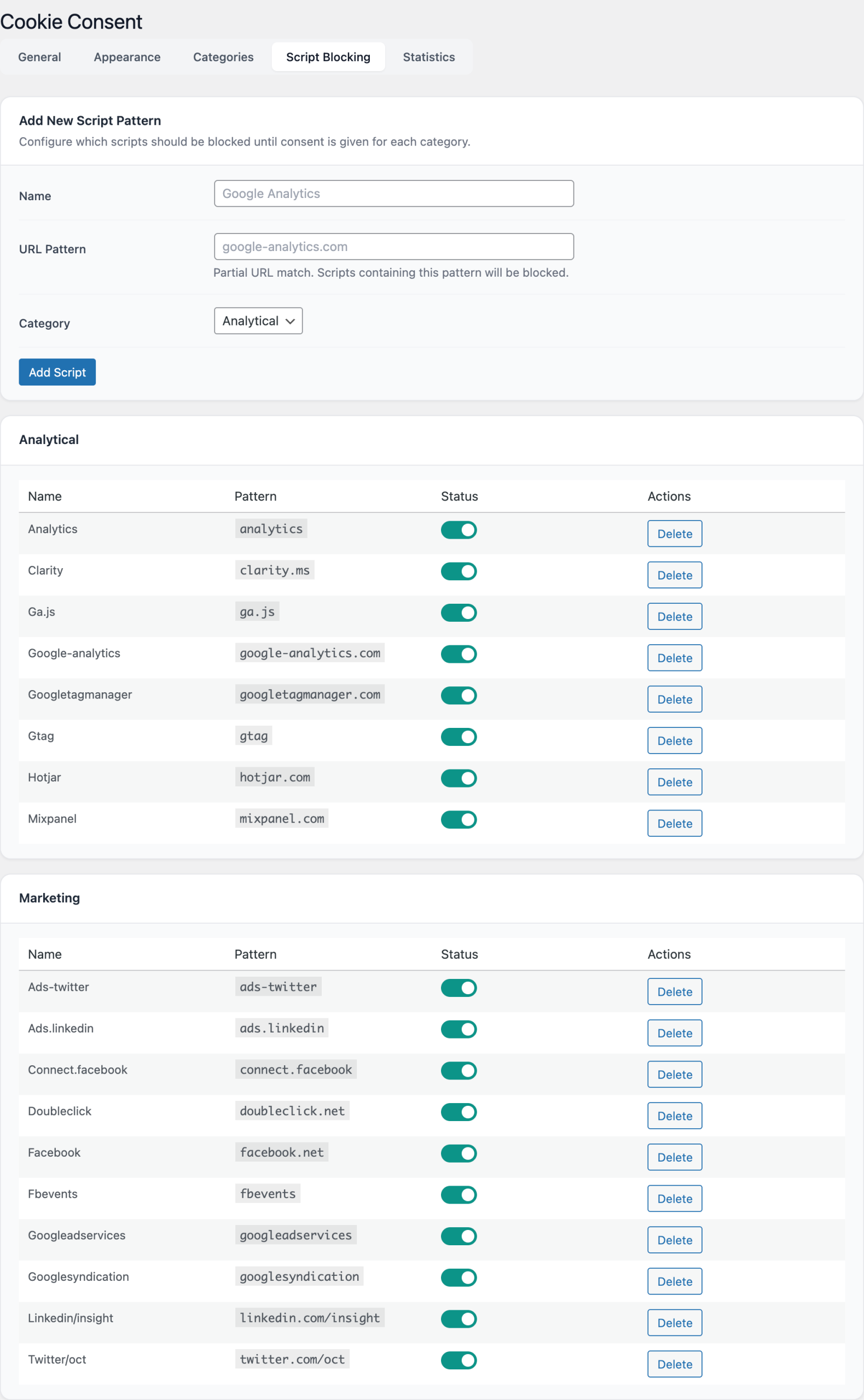
This is where compliance happens. Without script blocking the banner is decorative — visitors can decline cookies but third-party scripts will still load.
Each row in the script blocking table contains:
- URL pattern. A substring match. For example
google-analytics.com,googletagmanager.com,connect.facebook.net,hotjar.com,linkedin.com/insight. The match is case-insensitive and runs against the script’ssrcattribute as well as inline script bodies. - Category. Either Analytical or Marketing. The script will be loaded only after the visitor opts in to that category.
- Description. A free-text note to help administrators remember why the pattern was added.
The plugin ships with a starter set of patterns for the most common analytics and ad platforms. Review and add to it based on your actual tag manager configuration.
Patterns are matched on every page load. Blocked scripts have their type attribute rewritten to text/plain so the browser does not execute them. When consent is granted, the runtime locates the blocked tags, restores their type to text/javascript and re-injects them so they execute immediately without a page reload.
Statistics
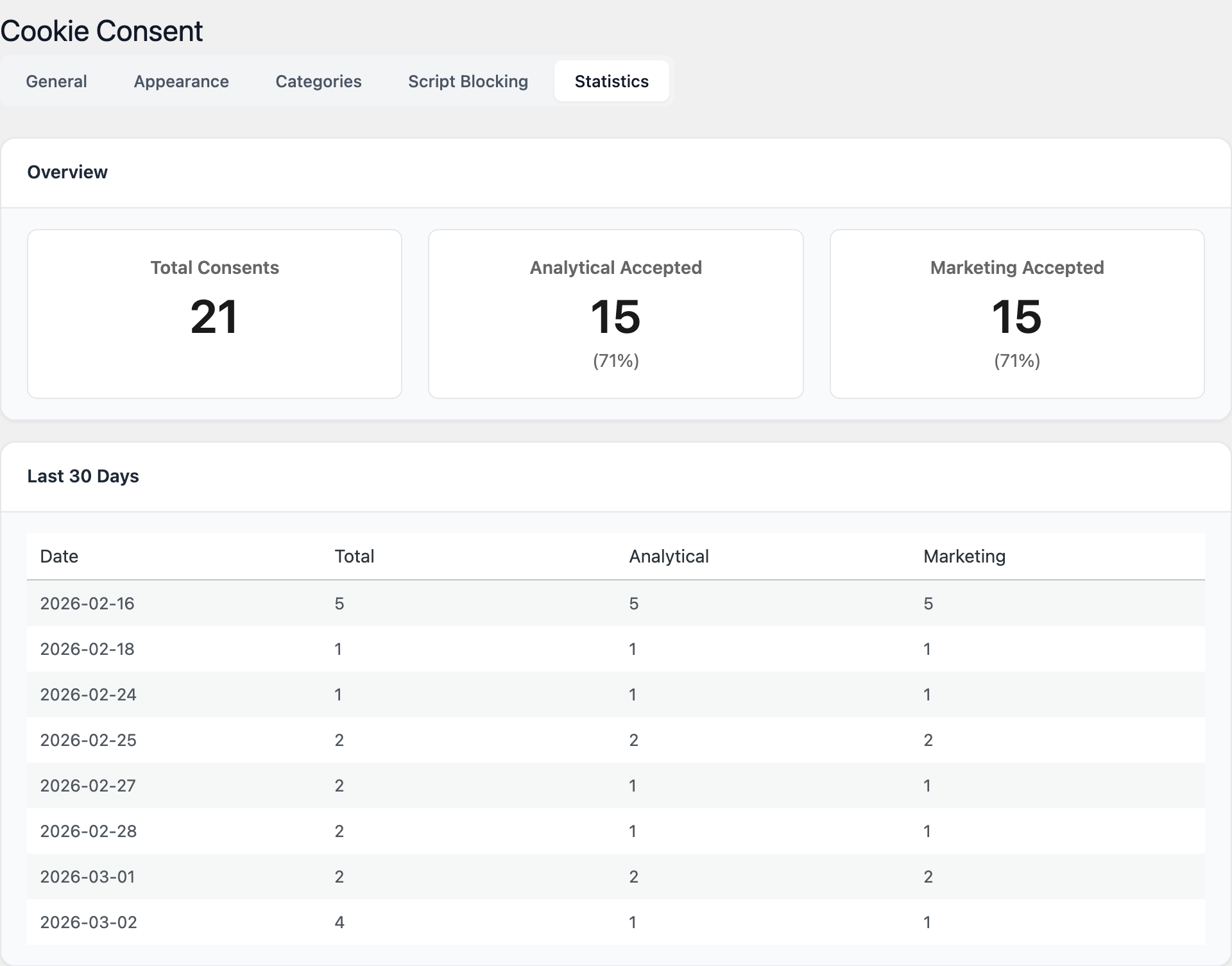
The Statistics tab is read-only and shows aggregated metrics derived from the consent log:
- Total consents recorded. Every Accept, Reject or custom selection counts as one record.
- Analytical acceptance rate. Percentage of visitors who opted in to the Analytical category.
- Marketing acceptance rate. Percentage of visitors who opted in to the Marketing category.
- Recent activity. A rolling log of the last 50 consent events, including timestamp, IP address (hashed), user agent and the categories chosen.
Use these numbers to estimate how much of your analytics traffic you are losing to consent declines and to demonstrate to auditors that consent collection is functioning.
Usage
Once configured, the banner appears automatically on the first visit and after the consent cookie expires. No shortcodes or template tags are required.
Reopening the settings modal
If the floating button is disabled, you can add a link anywhere on your site that lets visitors reopen the settings. Use a regular anchor with a class:
<a href="#" class="ccm-open-settings">Cookie preferences</a>Any element with the class ccm-open-settings will open the consent modal on click. This is useful for footer links and account pages.
PHP API
Server-side code can branch on consent before emitting markup or enqueuing scripts:
if ( function_exists( 'cookie_consent' ) && cookie_consent()->public->has_consent( 'analytical' ) ) {
    wp_enqueue_script( 'my-analytics', 'https://example.com/analytics.js', array(), null, true );
}
Categories accepted by has_consent() are the slugs from the Categories tab: necessary, analytical, marketing, plus any custom slugs you added.
JavaScript API
The frontend exposes a CookieConsent global with a small, stable API:
// Check whether the visitor has opted in to a specific category.
CookieConsent.hasConsent('marketing'); // → true | false

// Read the full consent object.
CookieConsent.getConsent();
// → { necessary: true, analytical: true, marketing: false, ts: 1716000000 }

// Programmatically open the settings modal.
CookieConsent.openSettings();

// Wipe the stored decision so the banner reappears.
CookieConsent.resetConsent();
Consent change event
The runtime dispatches a DOM event whenever consent is granted, updated or revoked. Listen for it to drive your own integrations — for example, to push a custom dataLayer event into Google Tag Manager:
document.addEventListener('ccm:consent-updated', function (event) {
    const consent = event.detail;
    window.dataLayer = window.dataLayer || [];
    window.dataLayer.push({
        event: 'cookie_consent_update',
        analytical: consent.analytical,
        marketing: consent.marketing,
    });
});
The event payload mirrors the object returned by CookieConsent.getConsent().
Filter hook
PHP developers can modify the settings object passed to the frontend runtime with the ccm_js_settings filter. This is useful for overriding text on a per-language or per-page basis without touching the database:
add_filter( 'ccm_js_settings', function ( $settings ) {
    if ( is_page( 'corporate' ) ) {
        $settings['title'] = __( 'Corporate cookie policy', 'my-theme' );
    }
    return $settings;
} );
Database tables
On activation the plugin creates two tables in the WordPress database:
{wp_prefix}ccm_consents— one row per consent decision, with timestamp, hashed IP, user agent and the per-category boolean choices.{wp_prefix}ccm_blocked_scripts— the script blocking patterns configured in the admin.
Both tables are removed by the bundled uninstall.php when the plugin is deleted through the WordPress UI.
Screenshots
The screens below illustrate a complete configuration cycle.
FAQ
Is the plugin GDPR compliant out of the box?
The plugin provides all the technical primitives required for GDPR compliance: prior consent, granular categories, an equally prominent reject button, easy withdrawal of consent, and a tamper-evident log. Compliance is a property of how you configure the plugin: you must still register every third-party script in the Script Blocking tab, write an accurate privacy policy, and link to it from the banner.
Does it cover CCPA and other privacy laws?
The same mechanism — granular categories, script blocking and a re-openable settings dialog — satisfies the CCPA “Do Not Sell” requirement, the UK GDPR, Brazil’s LGPD and most other modern privacy laws. For region-specific button text you can use the ccm_js_settings filter together with a geolocation plugin, or rely on Polyglot for language-based variation.
Will it slow down my site?
No. The frontend runtime is a single vanilla JavaScript file (around 12 KB minified, no jQuery, no external dependencies) loaded with defer. The banner is rendered in a single DOM pass and there is no remote call during page load.
Does it work with caching plugins?
Yes. The banner reads its consent state from a first-party cookie and renders entirely client-side, so it is compatible with full page caches (WP Rocket, LiteSpeed Cache, W3 Total Cache, Cloudflare APO). Make sure the consent cookie is not stripped by your caching layer.
How does it integrate with Google Tag Manager?
There are two supported patterns. The simplest is to add googletagmanager.com to the Script Blocking tab and assign it to the Analytical or Marketing category — GTM itself will not load until consent is granted. The more flexible pattern is to let GTM load unconditionally and gate individual tags inside GTM using the ccm:consent-updated event as a trigger.
Can I translate the banner?
Yes. The plugin is fully internationalized; the text domain is cookie-consent and .pot files live in the languages folder. If you have the Polyglot plugin installed, banner strings are picked up automatically and translated for every active language. You can also override text per page via the ccm_js_settings filter.
How long is consent stored?
For the number of days you configure under General → Cookie expiry. The default is 365 days. When the cookie expires the banner reappears and the visitor must consent again.
Does the plugin store personal data?
The consent log stores a SHA-256 hash of the visitor’s IP address (never the raw IP), the user agent string, a timestamp, and the per-category choices. No names, email addresses or full IP addresses are kept. The log is intended to satisfy the GDPR requirement to demonstrate that consent was given.
Can I export the consent log?
The log is stored in a standard WordPress table ({wp_prefix}ccm_consents) and can be exported with any database tool — phpMyAdmin, Adminer, wp db export, or a SQL client. A native CSV export from the Statistics tab is planned for a future release.
Troubleshooting
The banner does not appear
Confirm that Enable banner is on under Settings → Cookie Consent → General. If a previous visit already produced a consent decision, the banner will not show again until the cookie expires; clear the ccm_consent cookie in your browser or click the floating settings button and reset consent to test.
Scripts still load after rejecting
Verify that every tracking script is listed under Script Blocking and that the URL pattern actually matches. Inline scripts injected by theme or page builders are blocked too, but only when their content contains the configured pattern. Use the browser DevTools Network tab to identify the exact host of any request that slipped through, then add it to the Script Blocking table.
Floating button overlaps other widgets
Disable Show floating button under Appearance and instead add a <a class="ccm-open-settings">Cookie preferences</a> link to your footer. This gives you full control over placement.
Statistics show zero consents
Counters increment only when a visitor clicks a banner button. Page views without a banner interaction are not logged. If you see zero after launch, check that the banner is being rendered and that you are not browsing as a logged-in administrator on a page where the banner has been dismissed previously.
Banner copy is not translated
Polyglot must be installed and activated, and the target language must be enabled in Polyglot → Settings. The banner strings are translated on first request after a language is enabled; visit a page in that language once as an administrator to trigger translation.
Settings reset after update
The plugin stores all settings in standard WordPress options (ccm_settings, ccm_categories, ccm_scripts) and never deletes them on update. If you see resets, check whether a security or staging-sync plugin is overwriting options — this is rarely the cookie consent plugin itself.