Chatbot Pilot
Chatbot Pilot is an AI customer support chatbot for WordPress. It ships as a floating chat widget on the frontend and a full administration area in Settings → Chatbot Pilot. The plugin offers two operating modes:
- n8n mode — the widget forwards every visitor message to an external n8n workflow via webhook. Use this when you already run automations, custom logic or third-party integrations outside of WordPress.
- Native RAG mode — the plugin indexes your own site content (posts, pages, custom post types) into chunks stored in a local SQLite database, retrieves the most relevant passages at query time and generates an answer with the LLM provider of your choice (OpenAI, Anthropic Claude, Google Gemini, DeepSeek or a self-hosted Ollama instance).
Both modes share the same widget, the same conversation log and the same feedback/export tools, so you can switch backends at any time without losing the visitor-facing experience.
Highlights
- Dual backend: n8n webhook or fully native Retrieval-Augmented Generation.
- Multi-provider LLM support: OpenAI, Anthropic Claude, Google Gemini, DeepSeek, Ollama (local).
- Native RAG engine with SQLite storage, configurable chunk size and top-K retrieval.
- Background indexing through WordPress cron so re-indexing never blocks the admin UI.
- Customizable widget: position, primary/background/text colors, user and bot bubble colors, dimensions, border radius, typography.
- Editable copy for the welcome message, subtitle, input placeholder, loading state and error message.
- Conversation log with per-message feedback (thumbs up / thumbs down) and CSV export.
- Built-in health check that verifies provider connectivity, index status and webhook reachability.
- Multilingual ready through Polyglot — widget copy and knowledge base can be served per language.
Requirements
The plugin is self-contained and does not require any external service in Native RAG mode beyond the LLM API of your choice. The bundled vector store uses SQLite, which is available in every standard PHP build.
| Component | Recommended |
|---|---|
| WordPress | 6.2 or newer |
| PHP | 7.4 or newer (8.x recommended) |
| Database | MySQL/MariaDB for WordPress data, SQLite for the vector index |
| HTTPS | Required for webhook and provider calls |
| Outbound network | Required to reach the selected LLM provider |
For n8n mode you additionally need a reachable n8n instance with a Webhook
node configured to accept POST requests. For Ollama you need a running
Ollama server accessible from the WordPress host (typically
http://localhost:11434).
Installation
- Open Plugins → Add New → Upload Plugin in the WordPress admin and upload the Chatbot Pilot ZIP file.
- Activate Chatbot Pilot.
- Open Settings → Chatbot Pilot. The plugin creates its database tables and default options on first load.
- Choose the backend mode (n8n or Native RAG) and complete the provider configuration below.
- In Native RAG mode, click Reindex at least once to populate the knowledge base before exposing the widget to visitors.
- Visit any public page on the frontend to confirm the widget appears at the configured position.
The widget is enqueued automatically on every page once the plugin is configured; no shortcode or theme edit is required.
Configuration
The settings screen is split into tabs that mirror the sections below. All values are saved per site (or per network site on multisite) and can be changed without re-indexing, except for the indexing parameters themselves.
Backend mode
Pick exactly one backend. The choice determines which subsequent fields are visible.
- n8n webhook — the widget POSTs the visitor message, conversation ID
and current page URL to the webhook you provide. The expected response is
a JSON payload with a
replystring that is rendered back to the user. - Native RAG — the request is handled in-process. The plugin retrieves the top-K most relevant chunks from the local index, builds a prompt and calls the configured LLM provider.
n8n settings
Visible only when the backend mode is set to n8n webhook.
- Webhook URL — full HTTPS URL of your n8n Webhook node.
- Authentication header (optional) — name and value of a header to be sent with every request, useful for shared-secret protected webhooks.
- Timeout — maximum time, in seconds, to wait for a reply before showing the error message to the user.
AI provider (Native RAG)
Visible only when the backend mode is set to Native RAG.
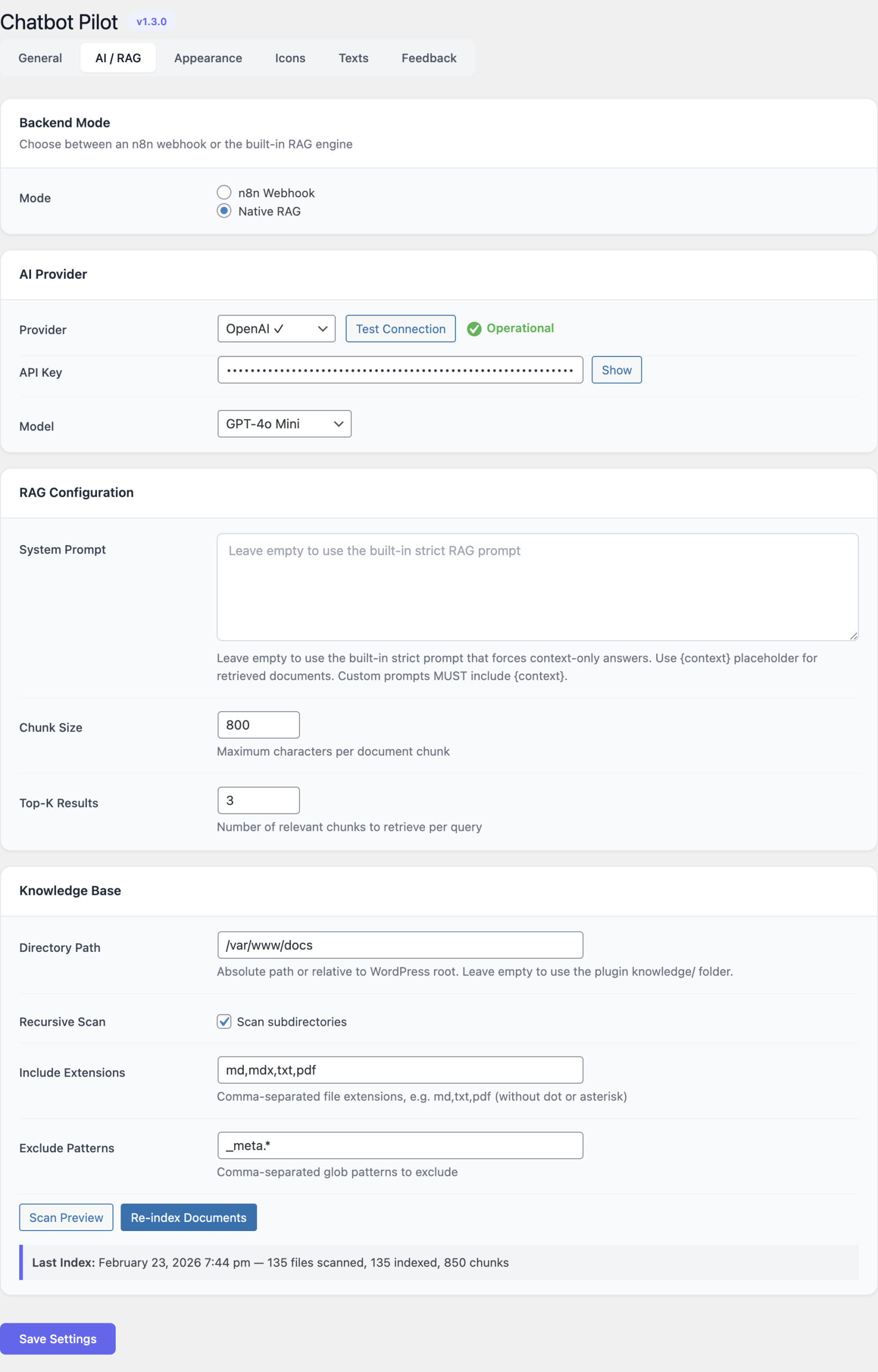
Select one provider and fill in the corresponding fields:
| Provider | Notes |
|---|---|
| OpenAI | Best overall quality with the GPT-4 family. Requires an API key from platform.openai.com. |
| Anthropic Claude | Strong reasoning and tone control. Requires an API key from console.anthropic.com. |
| Google Gemini | Fast responses at competitive pricing. Requires a key from Google AI Studio. |
| DeepSeek | Budget-friendly option with strong performance on technical content. |
| Ollama | Runs locally. Configure the base URL (default http://localhost:11434) and the model name. No API key required. |
Each provider exposes the same three fields:
- API key (or base URL for Ollama) — stored in the WordPress options table; never exposed to the frontend.
- Model — the specific model identifier to call (for example
gpt-4o-mini,claude-3-5-sonnet,gemini-1.5-flash,deepseek-chat,llama3.1:8b). - Test connection — sends a minimal ping to the provider and reports success or the verbatim error returned by the API. Always run this after changing the key or the model.
Knowledge base
Controls how the Native RAG index is built and queried. Changes to the chunking parameters take effect on the next reindex.
- Source path — comma-separated list of post types (or a root URL) to
ingest. Leave at the default
post,pageto index the entire site, or restrict to a specific knowledge-base CPT. - Chunk size — token count of each chunk written to the index. Default
500. Smaller chunks improve retrieval precision; larger chunks preserve more surrounding context. - Top-K — number of chunks retrieved per visitor question and passed
to the LLM as context. Default
5. - Reindex — schedules a full rebuild through WP-Cron. The progress bar shows the number of documents queued, processed and skipped. While the job runs the existing index continues to serve queries.
- Clear index — drops every row from the vector table. Use this before switching the embedding model.
Appearance
Every visual aspect of the widget is editable from this tab. The live preview on the right updates immediately as you change values.
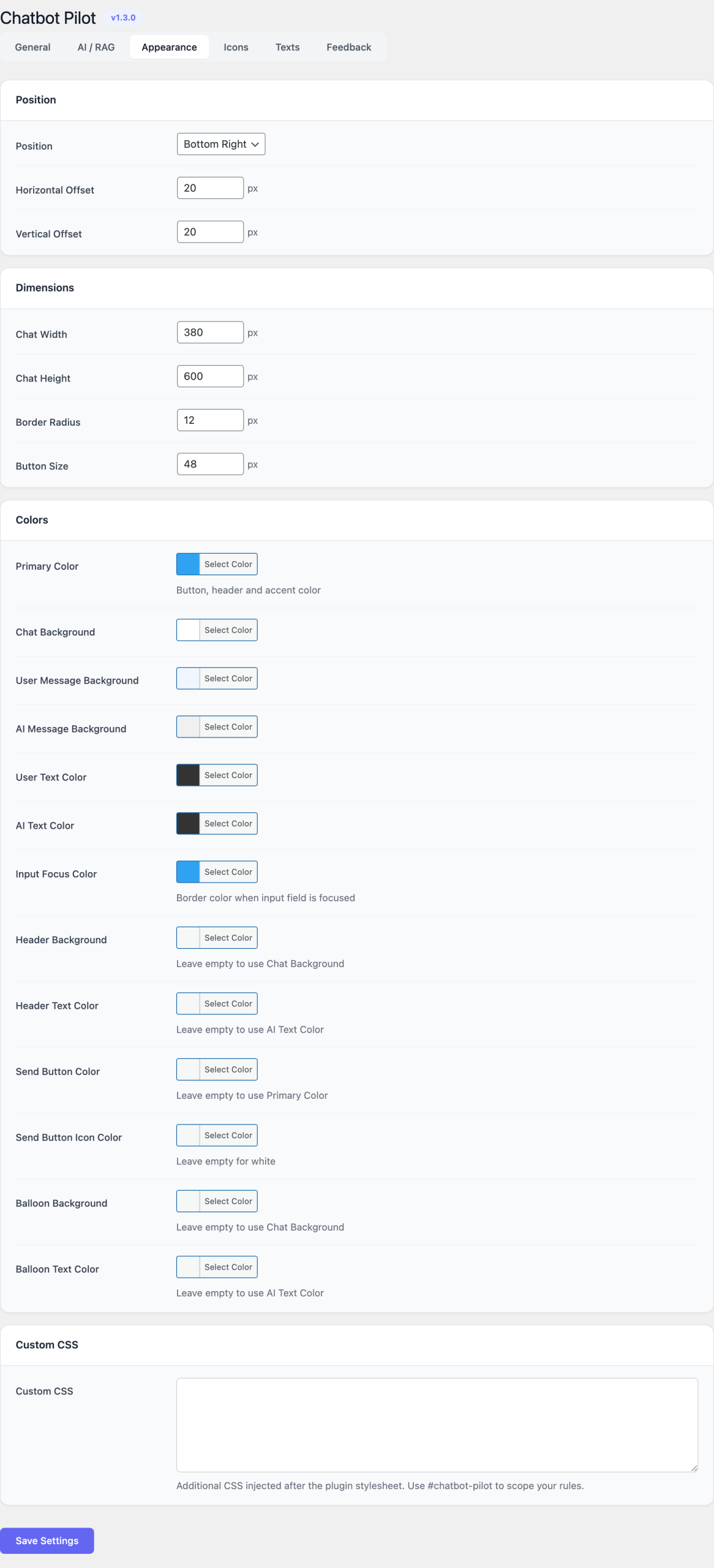
Position
- Bottom-right (default)
- Bottom-left
Colors
- Primary color — header background, send button, focus rings.
- Background color — chat window background.
- Text color — base text color inside the window.
- User message color — bubble background for the visitor.
- Bot message color — bubble background for the assistant.
Dimensions
- Window width and window height — in pixels.
- Launcher button size — diameter of the floating button.
- Border radius — applied to the window, the bubbles and the launcher.
Typography
- Font family — inherits from the theme by default; can be overridden with any CSS font stack.
- Base font size — applied to the chat body.
Copy
- Welcome message — first message shown when a visitor opens the widget.
- Subtitle — small text under the title in the header.
- Input placeholder — text displayed in the empty input field.
- Loading text — shown while waiting for the assistant reply.
- Error message — shown when the backend call fails or times out.
Visibility rules
- Show on — choose between All pages, Only on selected pages, or Everywhere except selected pages. Page IDs are entered as a comma-separated list.
- Hide for logged-in users — toggles the widget off for authenticated sessions.
- Mobile breakpoint — viewport width below which the widget collapses to a compact layout.
Feedback & analytics
- Enable feedback buttons — adds thumbs-up / thumbs-down controls under each assistant message.
- Store conversations — keeps the full transcript in the
wp_chatbotpilot_conversationstable for review and export. - Retention period — number of days after which stored conversations
are purged by the daily cron job. Set to
0to keep forever.
Health check
The health-check panel is always visible at the top of the settings screen. It runs three probes and shows a colored status pill for each:
- Provider reachability — calls the LLM API with a one-token ping.
- Index status — counts chunks in the SQLite store and reports the timestamp of the last successful reindex.
- Webhook reachability (n8n mode) — issues an
OPTIONSrequest to the configured webhook URL.
Any non-green status is clickable and expands into the verbatim error returned by the underlying call, which is normally enough to diagnose the issue.
Usage
For visitors
The widget appears on every page where the visibility rules apply. The visitor clicks the launcher button to open the window, reads the welcome message and types a question in the input field. Pressing Enter or the send button submits the message; the widget shows the loading text, then renders the assistant reply with markdown formatting (bold, links, ordered and unordered lists, code blocks).
If feedback buttons are enabled, the visitor can rate each assistant message. The rating is stored against the message ID so the same answer can later be reviewed in the admin panel.
For administrators
Day-to-day administration happens in two places:
- Settings → Chatbot Pilot for configuration and the health-check panel.
- Chatbot Pilot → Conversations for the conversation log and the feedback export.
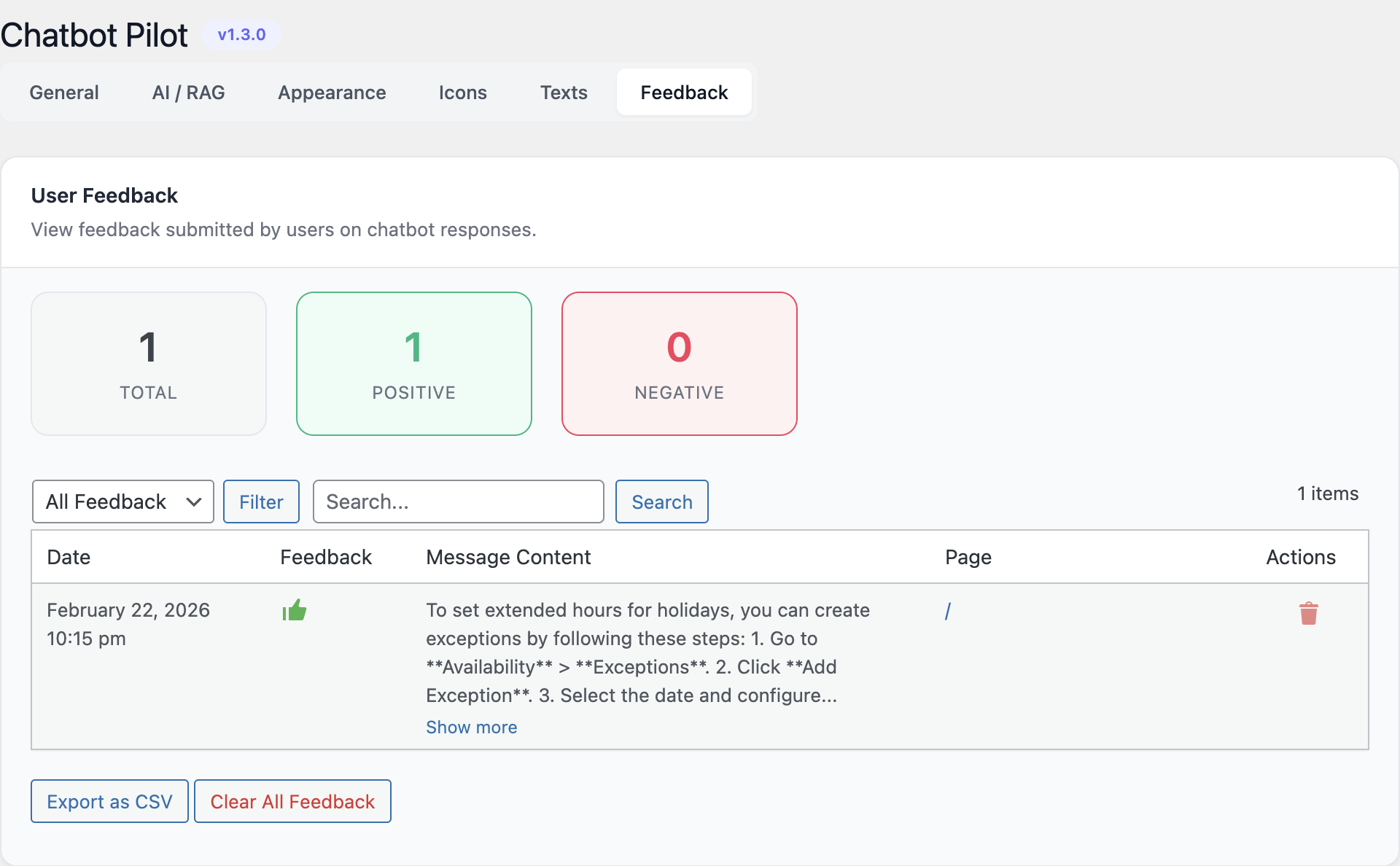
The conversation log lists every session with the date, the originating page, the number of messages and the aggregate feedback. Each row can be expanded to show the full transcript, including the retrieved context passages in Native RAG mode. The Export CSV button at the top of the list produces a UTF-8 CSV with one row per message; it respects any active date or rating filter.
Reindexing after content changes
The native index does not update itself in real time. Trigger a reindex when:
- You publish or substantially edit a batch of posts.
- You change the chunk size, the source path, or the embedding model.
- The health-check panel reports stale or empty index status.
For incremental updates the plugin also reindexes a single post on save when the Auto-reindex on save option is enabled in the Knowledge Base tab. This adds a small overhead to every post save but keeps the knowledge base in sync without manual intervention.
Switching backends
You can switch between n8n and Native RAG at any time. The widget, the conversation log and the feedback store are shared across modes. When switching to Native RAG for the first time, remember to run Reindex before the widget can answer questions.
Screenshots
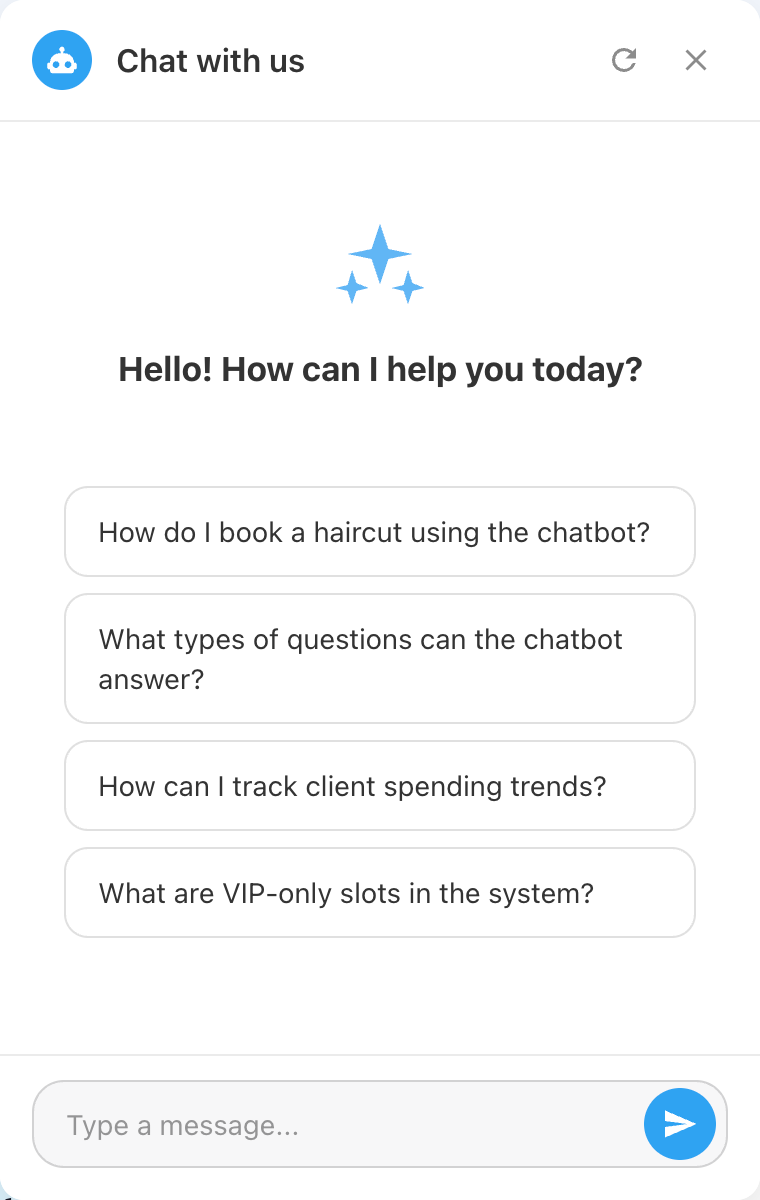
The screenshots below correspond to the four main areas of the admin interface and the frontend widget.
Frontend chat widget
AI provider configuration
Widget appearance editor
Conversation log and feedback export
FAQ
Which backend should I choose?
Use Native RAG if your goal is to answer questions about your own site content and you want a self-contained solution that only needs an LLM API key. Use n8n if you need to combine the chatbot with external tools (CRM lookups, ticketing, custom routing), or if the conversation should trigger actions outside WordPress.
Do I need to install n8n to use the plugin?
No. n8n is only required if you select n8n as the backend mode. Native RAG mode is fully self-contained.
Is my data sent to a third party?
In Native RAG mode every prompt and the retrieved context are sent to the LLM provider you selected. If this is not acceptable, run the plugin against a local Ollama instance — no data leaves the server in that case. In n8n mode every message is sent to your own n8n endpoint; what happens afterwards depends on the workflow you build.
Where is the index stored?
The vector index is a SQLite file in wp-content/uploads/chatbot-pilot/.
The WordPress options table holds the chatbot configuration, and the
wp_chatbotpilot_conversations table holds the conversation log.
Can I use it on a multilingual site?
Yes. With Polyglot installed, the indexer ingests the translated versions of each post and the widget copy is served per language. Without Polyglot you can still operate one widget per language by limiting the source path to language-specific categories.
Does it support custom post types?
Yes. Add the CPT slugs to the Source path field, comma-separated, and reindex.
Can I export conversations?
Yes. The Export CSV button on the Conversations screen produces a UTF-8 CSV file with one row per message, including the rating, the timestamp, the originating page and the full message text.
How do I delete a visitor’s data?
Open Chatbot Pilot → Conversations, filter by session ID or by IP, and use the Delete action on the matching rows. The conversation and its feedback entries are removed immediately.
Does the widget work without JavaScript?
No. The widget is a JavaScript single-page component; it does not degrade gracefully to a noscript fallback.
Troubleshooting
The widget does not appear on the frontend
- Verify that the backend mode is set and that the relevant credentials (API key or webhook URL) are saved.
- Check the visibility rules — the page may be excluded.
- Inspect the browser console: a 4xx response from
admin-ajax.phpusually indicates a permissions or nonce issue caused by an aggressive cache plugin.
The assistant replies with the error message
Open the health-check panel and click the red status pill to read the provider error verbatim. Common causes:
- Expired or revoked API key.
- The selected model is not available for your account or region.
- Rate limit exceeded — wait or upgrade the provider plan.
- The webhook URL returns a non-2xx status.
Reindexing seems stuck
WordPress cron only fires when the site receives traffic. Either trigger
a manual page hit, or call wp cron event run --due-now from WP-CLI.
The progress bar refreshes every few seconds while the job is running.
Answers are off-topic or hallucinated
- Reindex after recent content edits.
- Increase Top-K to give the model more context.
- Reduce Chunk size for finer-grained retrieval, then reindex.
- Try a stronger model (for example switching from GPT-4o-mini to GPT-4o, or from Gemini Flash to Gemini Pro).
Ollama replies are very slow
Local inference speed depends entirely on the host. Use a quantized
model (:q4_K_M or similar), ensure GPU acceleration is enabled, and
keep the chunk size and top-K modest.
Conversations are not stored
Confirm that Store conversations is enabled in the
Feedback & analytics tab and that the
wp_chatbotpilot_conversations table exists. Deactivating and
reactivating the plugin recreates missing tables.