Mail Pilot
Mail Pilot replaces the WordPress default mail function with the Brevo transactional email service. It routes every outgoing message through the Brevo HTTP API (with an automatic SMTP fallback), records each send in a searchable log, and verifies delivery in real time through webhooks. The result is reliable transactional email and complete visibility over what your site actually delivers.
The plugin is designed for site owners and administrators who need to be sure that password resets, order confirmations, contact form replies, WooCommerce notifications and other system mail reach the inbox. It does not add marketing or campaign features: it focuses on the transactional layer of WordPress.
Highlights
- Brevo API delivery. All
wp_mail()calls are routed through the Brevo transactional API, which improves deliverability compared to the default PHPmail()function. - Automatic SMTP fallback. If the API call cannot be completed (for example because of a temporary network issue), the message is retried through Brevo SMTP so that mail is not lost.
- Searchable email log. Every outgoing message is stored with recipient, subject, body, headers, status and timestamp. The log can be filtered by status and searched by recipient or subject.
- Open and click tracking. When enabled, Brevo injects a tracking pixel and rewrites links so the plugin can record opens and clicks for each message.
- Delivery verification via webhooks. Brevo posts back delivered, hard bounce, soft bounce, blocked, deferred and spam complaint events, which Mail Pilot reflects in the log entry.
- Automatic cleanup. A scheduled WordPress cron task removes old log rows according to a configurable retention period so the database does not grow indefinitely.
- Conflict prevention. Mail Pilot detects other SMTP plugins (in
particular WP Mail SMTP) and warns when both would override
wp_mail(), preventing duplicate or lost mail. - Resend and test. Any logged message can be resent from the admin page, and a built-in test email tool verifies the configuration.
Requirements
- WordPress 6.0 or later.
- PHP 7.4 or later (PHP 8.1+ recommended).
- A Brevo account (the free plan is sufficient for typical transactional volumes).
- A verified sender email address or authenticated sending domain in Brevo.
- Outbound HTTPS access from the WordPress server to
api.brevo.comon port 443, plus port 587 for the SMTP fallback. - WordPress cron (
wp-cron) enabled, or a system cron task hittingwp-cron.php, for the cleanup job to run on schedule.
Installation
- Download the latest
mail-pilot.zipfrom your account or the plugin download page. - In the WordPress admin, open Plugins → Add New → Upload Plugin.
- Choose the ZIP file, click Install Now, then Activate Plugin.
- After activation, a new entry appears under Mail Pilot → Settings. The plugin also adds a top-level Mail Pilot menu that gives direct access to the log and statistics screens.
On activation Mail Pilot creates its custom database table
({prefix}_mail_pilot_logs) used to store the mail log. No emails are
intercepted until the API key is saved and the integration is enabled.
Configuration
The configuration is split into three areas: the Brevo credentials, the sender identity, and the operational options for logging, tracking and retention. All settings live under Mail Pilot → Settings.
1. Create a Brevo account and API key
- Sign up at brevo.com if you do not yet have an account. The free plan allows a generous volume of transactional email per day, which is enough for most small and medium sites.
- Log in to the Brevo dashboard.
- Open the user menu in the top right corner and choose SMTP & API.
- Select the API Keys tab and click Generate a new API key.
- Give the key a recognisable name (for example
wordpress-mail-pilot) and copy the generated value. Brevo only shows the secret once; store it in a safe place.
2. Verify a sender
Brevo refuses to send messages from an unverified sender. Before saving the configuration in WordPress, make sure that either the sender email address or the whole domain is verified in Brevo:
- For a single address, open Senders, Domains & Dedicated IPs → Senders in Brevo, add the address and confirm it via the email Brevo sends.
- For a domain, open Senders, Domains & Dedicated IPs → Domains and follow the wizard that asks you to add the SPF, DKIM and DMARC DNS records. Domain authentication gives the best deliverability and is strongly recommended for production sites.
3. Enter the credentials in WordPress
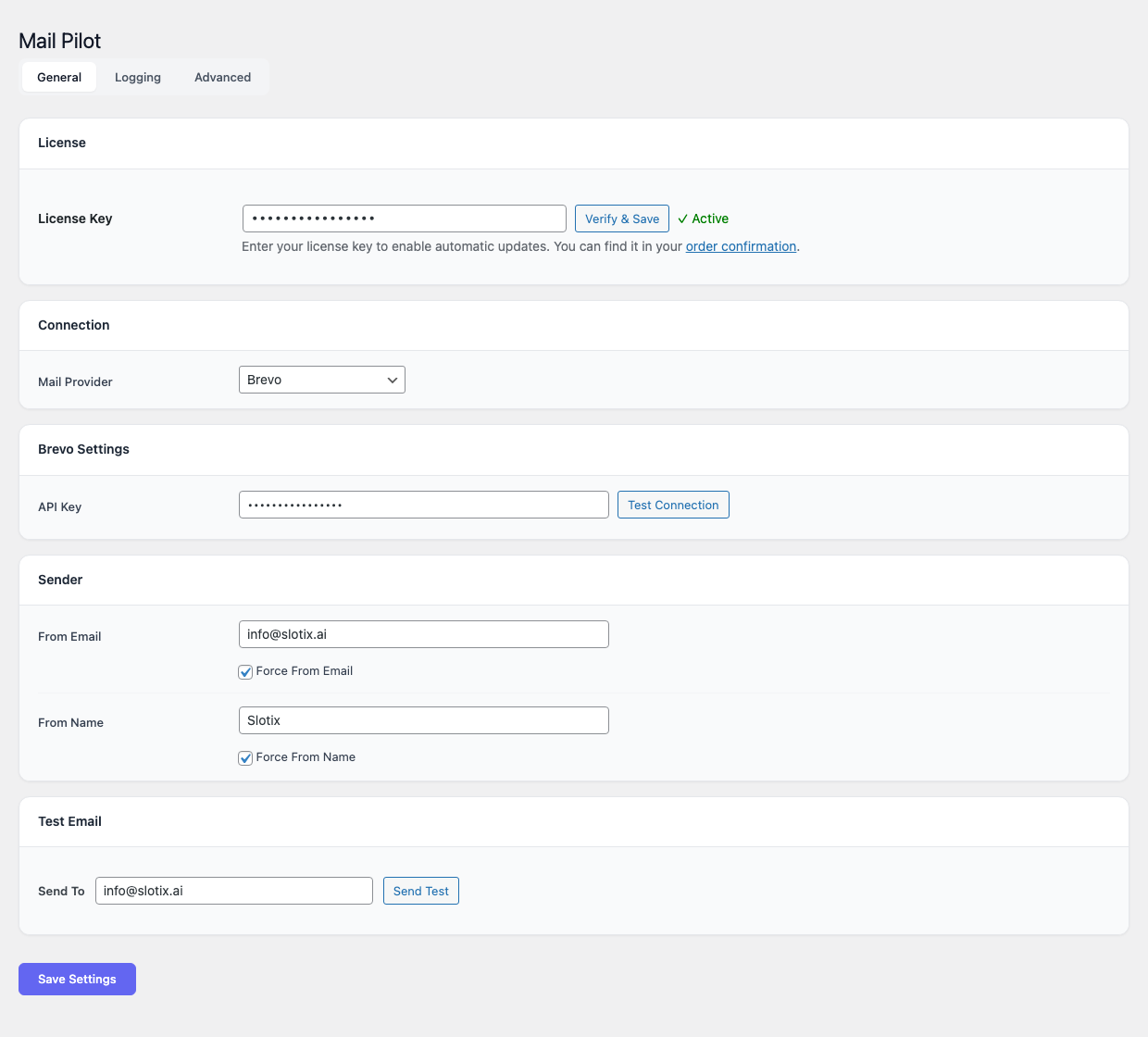
- Open Mail Pilot → Settings in the WordPress admin. The page is split into three tabs — General, Logging and Advanced — but the credentials and the test mailer all live on the General tab.
- (Optional) In the License card at the top, paste your
PILOT-XXXX-XXXX-XXXX-XXXXkey and press Verify & Save to enable automatic plugin updates from the GitHub release feed. - In the Connection card, leave Mail Provider on
Brevo(the only provider currently shipped). - In the Brevo Settings card, paste the API key in the API Key field and press Test Connection to validate the credentials against the Brevo API.
- In the Sender card, set:
- From Email to the verified address from the previous step, and tick Force From Email to override any per-email sender set by other plugins.
- From Name to the label that should appear as the author of outgoing messages, and tick Force From Name to make it win over per-email overrides too.
- Click Save Settings.
If you want to send a quick verification email, the Test Email card at the bottom of the General tab exposes a Send To field and a Send Test button.
4. Send a test email
Below the credentials section, the Send test email form lets you verify the configuration end to end:
- Enter the destination address (your own inbox is a good choice).
- Click Send test email.
- The plugin shows a success or error message immediately, and the message appears in the log within a few seconds.
If the test message reaches the inbox, the API integration is working. If it does not arrive within a couple of minutes, open the log entry and check the response details returned by Brevo, then consult the Troubleshooting section below.
5. Configure the delivery webhook
Open, click and delivery events are pushed back to WordPress by Brevo through a webhook. Setting it up is optional but recommended, because without it the log will only show that the message was accepted by Brevo, not whether it was actually delivered, bounced or opened.
- In Mail Pilot, copy the Webhook URL shown in the settings page.
It points to the REST endpoint
https://<your-site>/wp-json/mail-pilot/v1/webhook. - In the Brevo dashboard, open Transactional → Settings → Webhook and click Add a new webhook.
- Paste the URL into the URL to call field.
- Select the events to report. The recommended set is:
- Sent
- Delivered
- Hard bounce
- Soft bounce
- Blocked
- Spam (complaint)
- Opened (only if open tracking is enabled)
- Clicked (only if click tracking is enabled)
- Save the webhook.
Brevo will start posting status updates to WordPress immediately. The log table refreshes the status column as events arrive.
6. Tracking, retention and cleanup
The Settings page’s Logging and Advanced tabs expose the operational options:
- Enable open tracking. When on, Brevo embeds a 1x1 tracking pixel in the HTML body. The pixel is loaded by the recipient’s mail client, which counts as an open.
- Enable click tracking. When on, links in HTML emails are rewritten to point at a Brevo redirector that records the click and then forwards the user to the original URL.
- Log retention (days). Number of days after which log entries are
removed by the cleanup task. The default is 30 days. Set it to
0to keep entries forever (not recommended on busy sites). - Cleanup schedule. Frequency of the WordPress cron event that prunes the log. The default is daily.
- Log message body. When off, only metadata (recipient, subject, status) is stored, which reduces database size and avoids storing the body of sensitive emails such as password resets.
Click Save Changes to apply.
Usage
Once the integration is enabled, Mail Pilot works transparently. Every
call to wp_mail() made by WordPress core, themes or plugins is
intercepted and rerouted through Brevo. No code change is required in
WooCommerce, Contact Form 7, WPForms, BuddyPress or any other plugin
that uses the standard WordPress mail API.
The dashboard
The Mail Pilot top-level menu opens a dashboard that summarises mail activity for the selected period. A range picker at the top toggles between 7 days, 14 days and 30 days, and six KPI cards across the top of the page report Total sent, Delivered (with delivery rate %), Failed (with failure rate %), Bounced, Opens (with open rate %) and Clicks. The figures are updated as webhook events arrive.
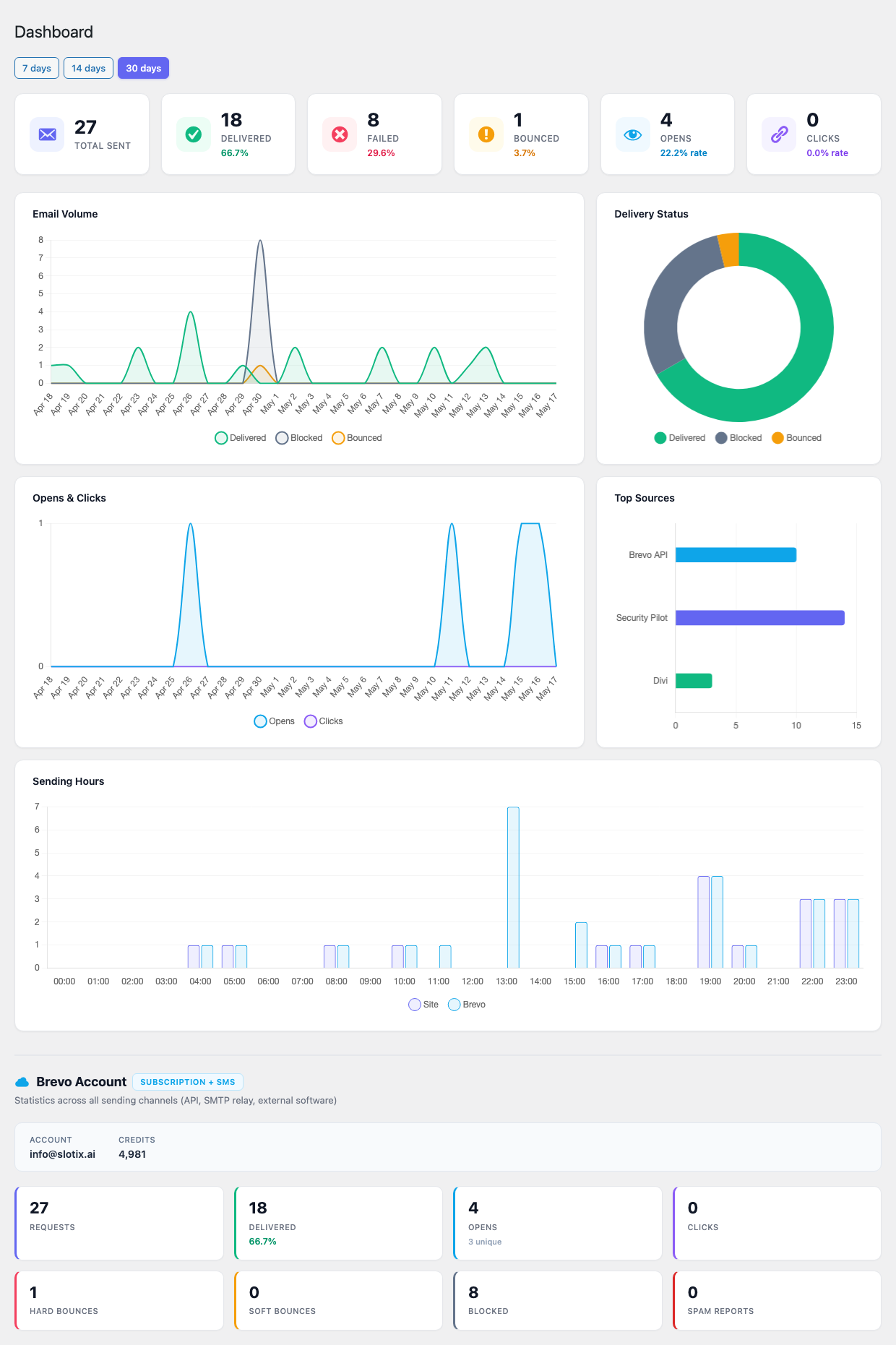
Below the KPIs the dashboard renders five live charts driven by the plugin’s own log:
- Email Volume — daily stacked area of delivered, blocked and bounced messages.
- Delivery Status — doughnut breakdown of the same three buckets for the selected period.
- Opens & Clicks — daily line chart of unique opens and clicks.
- Top Sources — horizontal bar chart of the plugins/themes generating the most emails, derived from the call site recorded on every send.
- Sending Hours — hourly histogram of when emails leave the site versus when Brevo dispatches them, useful for spotting cron storms.
A Brevo Account card at the bottom pulls the live status of your Brevo account: the connected account email, current credit balance, and counters for Requests, Delivered, Opens, Clicks, Hard bounces, Soft bounces, Blocked and Spam reports across all sending channels (API, SMTP relay and external software).
The email log
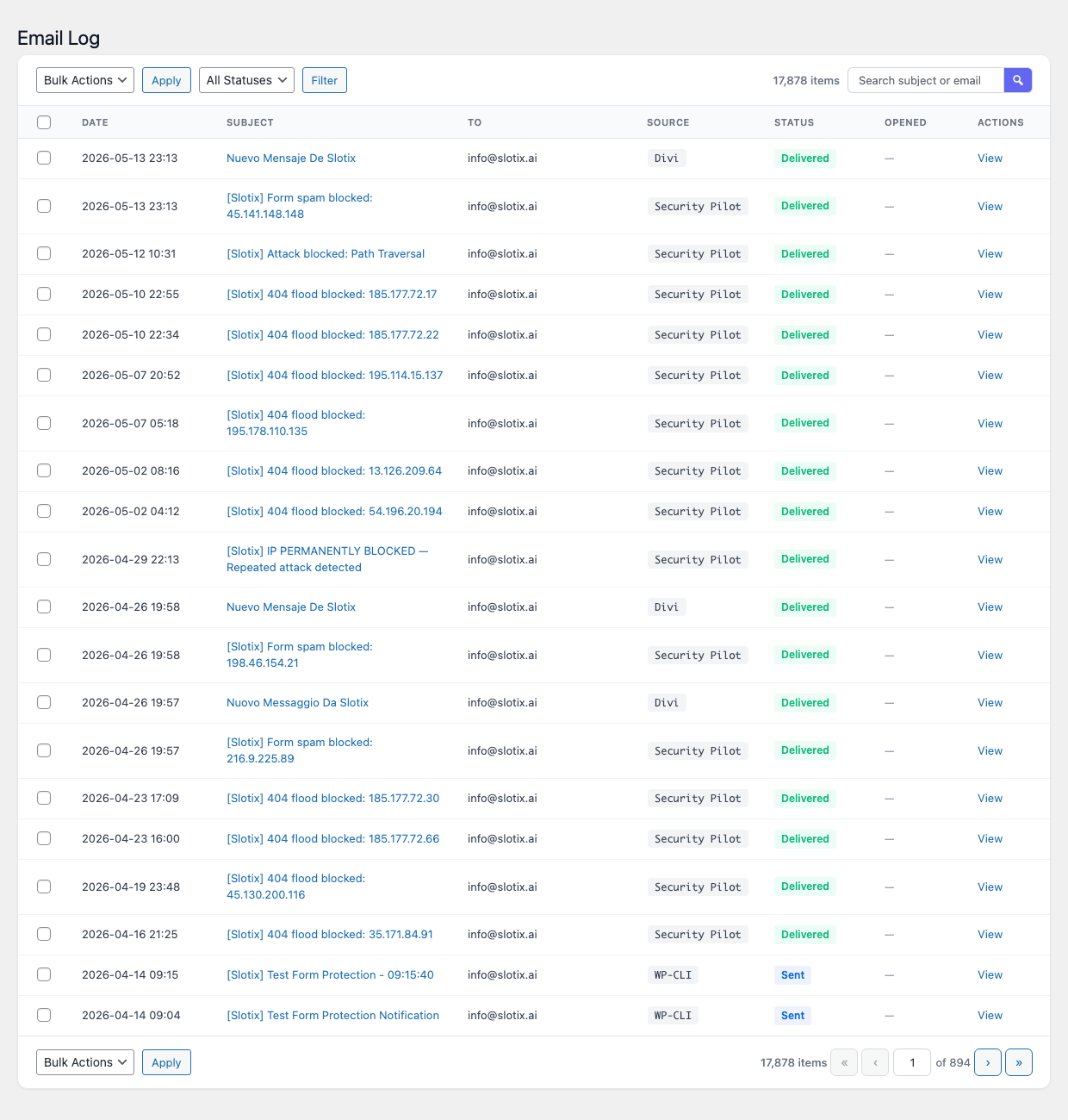
The Email Log screen (Mail Pilot → Email Log) lists every message processed by the plugin, most recent first, with a bulk action dropdown, a status filter, a free-text search box and a per-row View action. Each row shows:
- The recipient address (or the first address if several are present).
- The subject.
- The current status:
queued,sent,delivered,opened,clicked,soft-bounce,hard-bounce,blocked,spamorerror. - The timestamp of the last status change.
- The Brevo message ID (used to correlate the entry with Brevo’s own logs).
Use the search box above the table to filter by recipient or subject, or the status dropdown to show only failing messages. Clicking a row opens the detail view, which exposes:
- The full message headers and body (if body logging is on).
- The list of recipients (To, Cc, Bcc).
- Each tracked event with its timestamp.
- The raw Brevo response, useful for support requests.
From the detail view you can click Resend to retry the message unchanged, or Copy to use it as the starting point for a new test message.
WordPress dashboard widget
Mail Pilot registers a widget on the standard Dashboard screen (the page WordPress opens at sign-in). The widget mirrors the plugin’s own dashboard at a glance so you can spot delivery anomalies without clicking into the Mail Pilot menu.
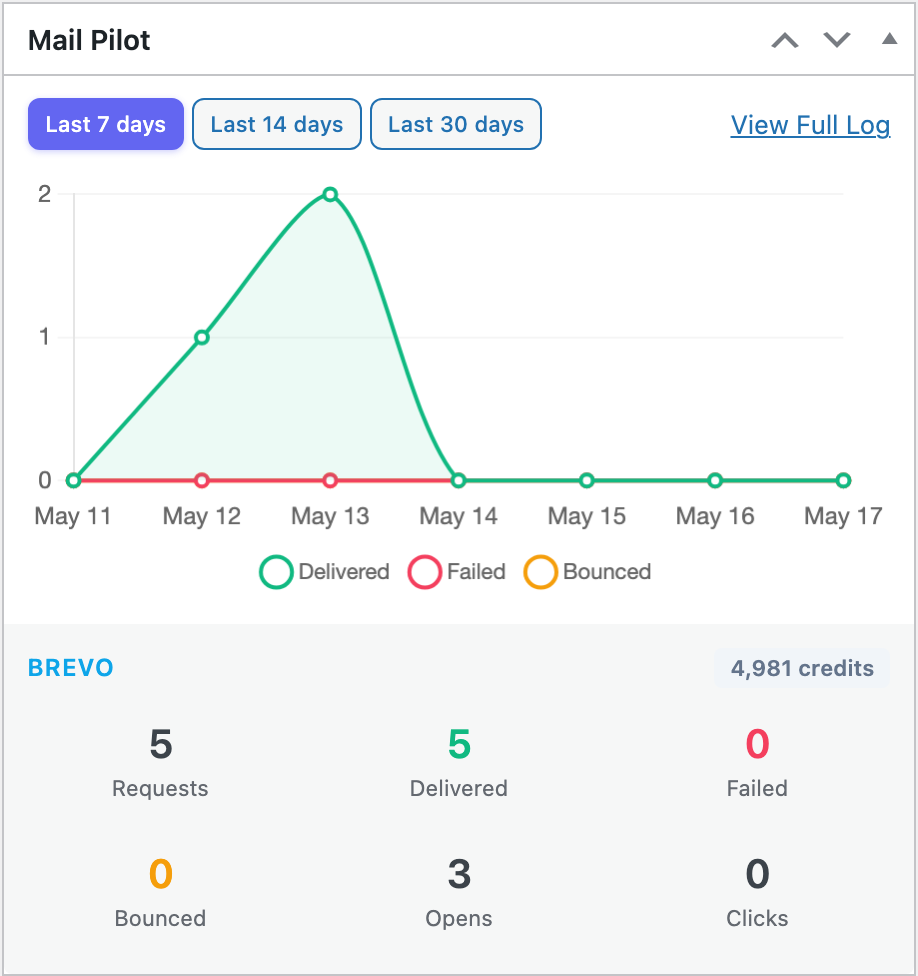
The widget exposes a Last 7 / 14 / 30 days range picker, an Email Volume line chart (Delivered / Failed / Bounced), and a Brevo footer with the current credit balance and counters for Requests, Delivered, Failed, Bounced, Opens and Clicks. A View Full Log link in the header opens the Email Log page.
The widget is opt-in: switch it on or off under Mail Pilot → Settings → Advanced → Dashboard Widget.
Working with other plugins
Mail Pilot replaces the default wp_mail() implementation with its own
PHPMailer extension. As a consequence it is incompatible with any other
plugin that does the same, including WP Mail SMTP, Easy WP SMTP, Post
SMTP, FluentSMTP and similar tools. The plugin detects the most common
of these and shows an admin notice asking you to choose one mailer. The
recommended path is to deactivate the other SMTP plugin and import its
credentials into Mail Pilot if needed.
WooCommerce, BuddyPress, WPForms, Contact Form 7, Easy Digital Downloads
and the WordPress core notifications continue to work without any
change: they all go through wp_mail() and are therefore captured by
Mail Pilot automatically.
FAQ
Does Mail Pilot replace transactional emails only, or also marketing
campaigns?
It only handles transactional email, that is everything sent through
WordPress’s wp_mail() function. Marketing campaigns created in the
Brevo dashboard are managed there and not visible in the Mail Pilot log.
Do I have to pay for Brevo? No. The Brevo free plan currently includes a daily quota of transactional emails that covers most small and medium sites. If your volume grows, you can upgrade to a paid plan from within the Brevo dashboard without reinstalling the plugin.
Can I keep using WP Mail SMTP and Mail Pilot at the same time?
No. Only one plugin can override wp_mail(); running two at the same
time leads to duplicate sends, lost messages or PHP errors. Deactivate
the other SMTP plugin before enabling Mail Pilot.
Are message bodies stored in the database? Only if Log message body is enabled in the settings. With the option turned off, the log keeps the recipient, subject, headers and status but not the body, which is preferable when sites send password resets or other sensitive content.
Will open tracking work with all email clients? Open tracking depends on the recipient loading remote images in their mail client. Many corporate clients and Apple Mail Privacy Protection block or pre-fetch the pixel, so open rates should be interpreted as a lower (or upper) bound, not as an exact figure.
Does the plugin support multiple sender addresses?
The default sender is configured globally. Plugins or code that pass an
explicit From: header to wp_mail() will use that address as long as
it is verified in Brevo. Unverified addresses are rejected by the API.
Can I export the log? Yes. The log screen has an Export CSV button that exports the currently filtered view. The export contains recipient, subject, status, timestamps and Brevo message ID.
Where is the data stored?
Logs are stored in a custom table called {prefix}_mail_pilot_logs in
the WordPress database. Settings live in the standard WordPress options
table. Nothing is sent to third parties besides Brevo itself.
Is Mail Pilot compatible with multisite? Yes. Each site in a multisite network keeps its own settings and log table, and uses its own Brevo API key. The plugin can also be network-activated.
Troubleshooting
The settings page shows “API key rejected”. Re-copy the key from Brevo, making sure there are no leading or trailing spaces. Confirm that the key has not been revoked or scoped down in the Brevo dashboard. Keys created for the v2 API may not work; generate a v3 key from the API Keys tab.
Test emails are reported as sent but never arrive. Open the log entry for the test message and check the Status and Brevo response sections. The most common cases are:
- The recipient is on Brevo’s suppression list (previous bounce or unsubscribe). Remove the address from Contacts → Suppressed contacts in Brevo.
- The sender or sending domain is not verified, so Brevo accepts the request but blocks the message.
- The recipient mail provider has flagged the message as spam. Check the spam folder and review SPF, DKIM and DMARC for the sending domain.
Webhook events never reach the log.
Verify that the webhook URL saved in Brevo matches the one shown in
the Mail Pilot settings page, including the protocol (https) and any
subdirectory of your install. WordPress must be reachable from the
public internet; webhooks cannot be delivered to a site behind a VPN
or to localhost. If you use a security plugin or a WAF, make sure
that requests to /wp-json/mail-pilot/v1/webhook are not blocked.
Old log entries are not being deleted.
The cleanup is triggered by WordPress cron. If your site has very low
traffic, the cron may not fire often enough; configure a system cron
task to call wp-cron.php once per hour. You can also trigger a
manual cleanup with the Run cleanup now button at the bottom of
the settings page.
A specific plugin’s emails are not being routed through Brevo.
Check whether the plugin in question sends mail through its own SMTP
implementation instead of wp_mail(). Plugins that bypass wp_mail()
cannot be intercepted; consult their documentation to point them at
the same Brevo credentials, or disable their custom mailer.
Switching to Mail Pilot caused emails to come from a different
address.
The sender address configured in Mail Pilot overrides the one that
WordPress would otherwise use. To keep a per-plugin “From” address,
make sure that plugin sets the From: header explicitly when calling
wp_mail(); otherwise update the global sender in
Mail Pilot → Settings to the desired value.